Google Maps on a phone mount works, but Android Auto is the version designed for a moving car: bigger targets, a simplified screen, and voice control that keeps your hands on the wheel. The catch is that the connection step confuses almost everyone the first time, and the settings that matter are split between the phone and the car. This guide walks the whole path in order: check compatibility, connect wired or wireless, make Google Maps the default navigator, run a trip by voice, survive the dead zones, and fix the failures that stop the screen from appearing at all. If you are still choosing which app deserves the car screen, our best map app for Android Auto roundup compares the candidates; this page assumes Google Maps won and gets it working.
How to Use Google Maps With Android Auto: Connect, Navigate, and Drive Hands Free
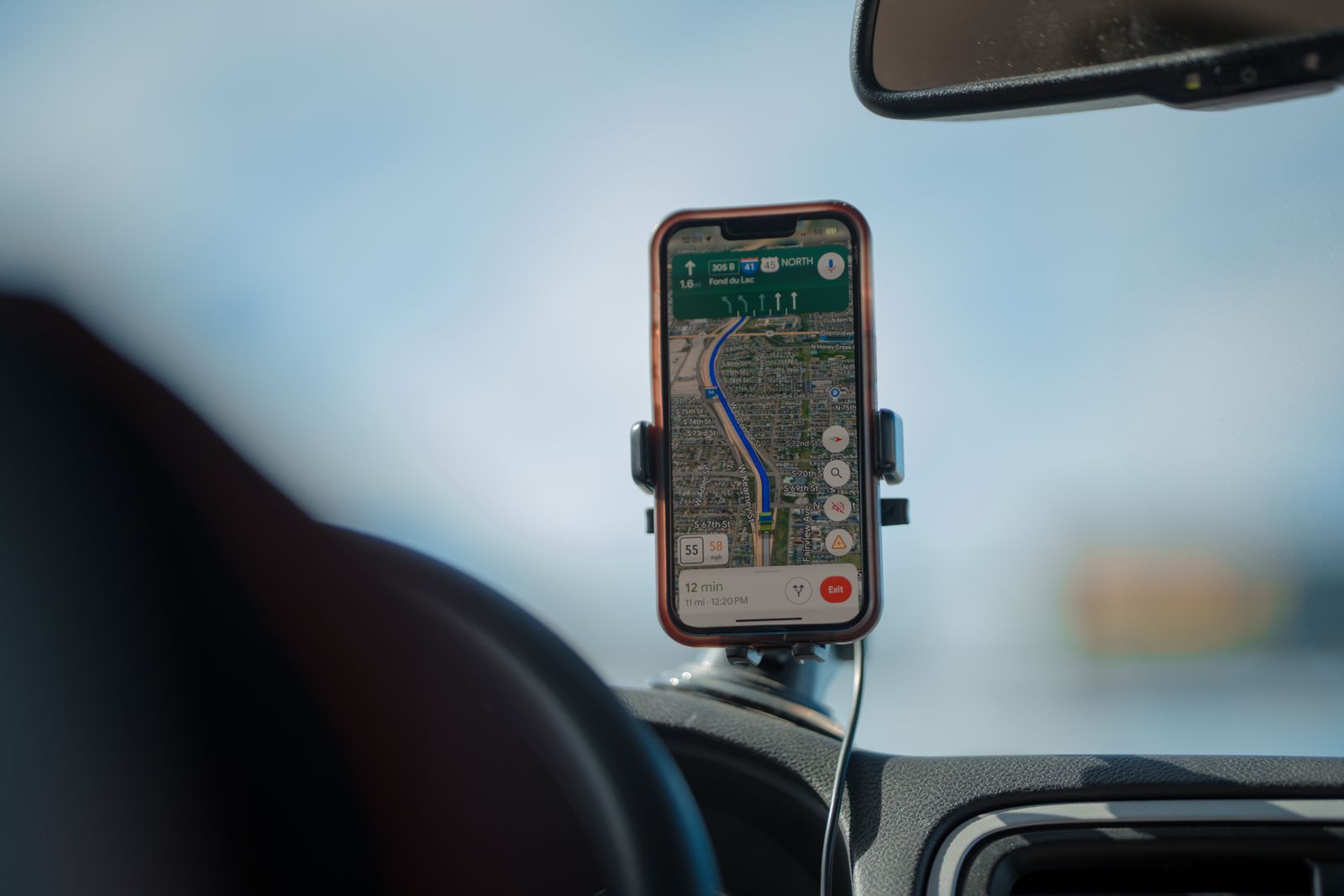
Photo: William Hadley / Pexels
Android Auto Setup: The Parked Car Check
Check off each step as you finish it. Your progress stays on this page.
0 of 7 complete
0% done
Check Compatibility Before You Blame the Cable
Three things must line up. First, the car or head unit must support Android Auto; most cars from the last several years do, and aftermarket head units add it to older cars. Second, the phone must run a recent Android version; Android Auto is built into Android itself on modern phones, so there is no separate app to install from the Play Store, and the old phone screen version of Android Auto was retired in favor of the car screen and Google Assistant driving features. Third, for a wireless connection the car must support wireless Android Auto specifically, which is a shorter list than wired support, and the phone needs Wi-Fi and Bluetooth on. When a setup fails, the honest first question is which of the three is missing, because no setting fixes a head unit that simply does not speak Android Auto. Our general how to use Google Maps guide covers the phone side of the app; everything below is the car layer on top of it.
Connect With a Cable: The Reliable First Run
Wired Android Auto is the dependable path and the right way to do the first connection even on wireless equipped cars. Use a short, good quality USB cable; the bargain bin cable that charges slowly is the single most common cause of random disconnects, because Android Auto pushes far more data than charging does. Plug into the car's data port, which is not always the port that charges fastest, and is often marked or is the only port near the head unit. Unlock the phone, accept the prompts on both screens, and grant the permissions Android Auto requests. The car screen should switch to the Android Auto home within seconds. Do all of this parked, once, at home: the first run involves permission dialogs that you must never be reading at speed. After this pairing exists, later wired connections are plug and go.
Go Wireless After the Pairing Exists
Wireless Android Auto removes the cable ritual, at the price of battery drain and a fussier first setup. The standard path is: complete the wired pairing first, then enable wireless in the car's Android Auto settings if the car offers it, with the phone's Wi-Fi and Bluetooth on. On later trips the car finds the phone automatically and the screen appears without touching anything. Two honest costs. The phone loses charge instead of gaining it, and navigation plus a wireless link is a heavy load, so long trips still deserve a cable or a charging pad. And wireless links drop in a few notorious spots, such as near strong interference sources; when a wireless connection dies mid trip, plugging the cable in is the fix, not restarting everything. Treat wireless as the convenience for short trips and the cable as the tool for long ones.
Make Google Maps the Navigation App
Android Auto can run several navigation apps, and the car remembers the one you used last. Open Google Maps on the car screen once and it becomes the default face of navigation; a steering wheel or home shortcut in many cars returns to it. On the phone, open Android Auto settings (Settings, Connected devices, Connection preferences, Android Auto on most Android phones) and confirm Maps has its permissions, especially location, without which nothing routes. Set your home and work addresses in Google Maps on the phone; they sync to the car and become one tap or one voice command destinations. While parked, also download the offline maps for your usual region, for reasons the dead zone section below explains. Voice settings live in Google Maps itself; if the spoken prompts annoy you, google maps change voice covers the voice and guidance volume options, which carry over to the car.
Run the Trip by Voice, Start to Finish
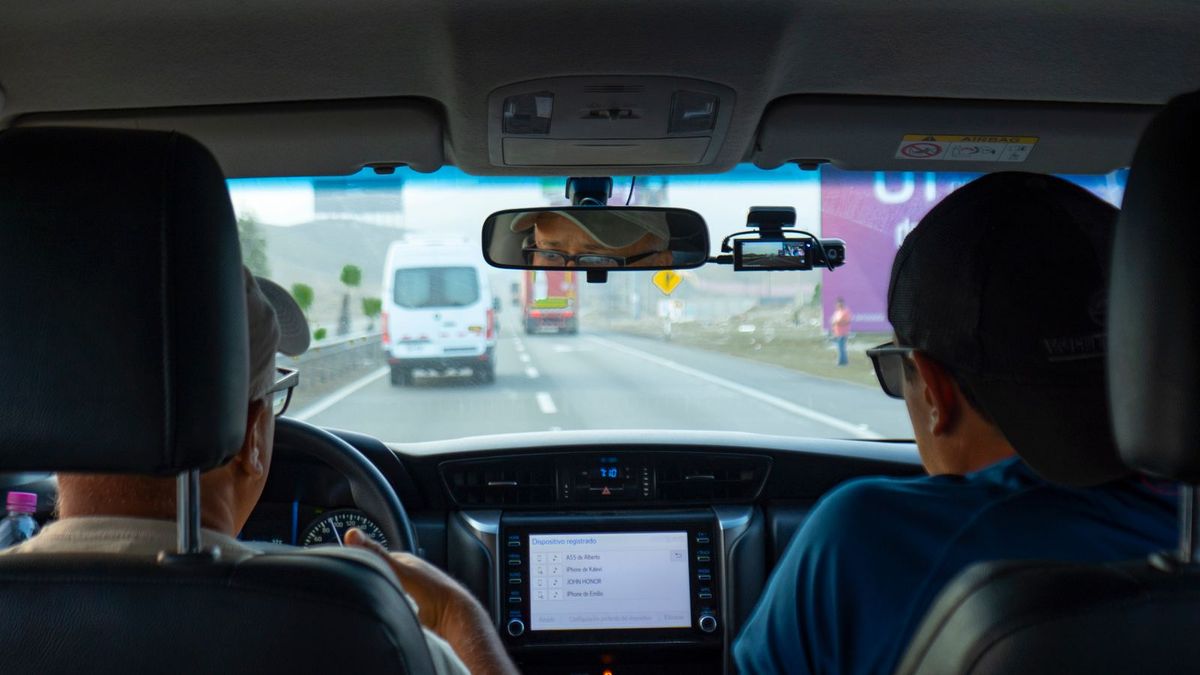
The entire point of the system is that a trip should need zero touches while moving. Wake the assistant with the steering wheel button or "Hey Google" and speak the whole request: "Navigate to the airport", "Navigate home", "Find a gas station along my route". Maps shows the route on the car screen and starts guidance. During the drive the useful commands are "What is my ETA", "Share my ETA" (which sends your arrival time to a contact), "Avoid tolls" to reroute, and "Cancel navigation" at the end. If you must interact with the screen, do it at a stop; the interface deliberately limits scrolling and typing while the car moves, and destinations are meant to be set from the parked search, recents, and saved places lists. Build the habit the checklist above encodes: address typed while parked, everything else by voice.
The Dashboard Layout and What It Shows
Modern Android Auto uses a split dashboard: the map takes most of the screen, with a media card and a next step or suggestion card beside it. The map card shows your route, the next turn, live traffic coloring, and incident reports you can confirm with one tap when stopped or via voice. Speed limit display appears where Google has data, which varies by country and road class; treat it as a hint and the road signs as the law. The bottom bar holds the app launcher and the assistant. One layout trap: the map can be switched to a north up or heading up view and a satellite layer exists in the phone app, but the car interface keeps the choices short on purpose. Everything on this screen is a reduced, safer subset of the phone app, and features you cannot find here usually live on the phone, to be set while parked.
Dead Zones: Offline Maps on the Car Screen
Android Auto renders the map from the phone, so the car inherits the phone's connection, and its offline preparation. With no signal, Google Maps on Android Auto keeps navigating a route it already has, but it cannot search, reroute around new closures, or load fresh traffic. The fix is the same discipline as on the phone: download offline areas for the regions you drive, which our how to download offline maps guide walks through; downloaded areas work through the car screen exactly as on the phone, including turn by turn guidance for driving. Set downloads to auto update on Wi-Fi so the car copy never goes stale. A trip through mountains, deserts, or rural coverage gaps should always start with the download check on the checklist, because the middle of the dead zone is the worst place to learn the map was never saved.
When the Screen Will Not Appear: A Fix Order
Work failures in this order, cheapest first. Cable: swap to a known good, short data cable and the car's data port; this fixes the majority of cases. Permissions and prompts: unlock the phone and clear any waiting dialog; a denied permission months ago silently blocks every later attempt. Updates: update Google Maps, Google Play services, and the phone system; Android Auto itself updates through the system now. Car settings: some head units have an Android Auto enable toggle per phone, buried in connectivity settings, and a forgotten disabled toggle looks exactly like a broken cable. Forget and re pair: remove the car from the phone's Android Auto previously connected cars list and the phone from the car's list, then do the parked first run again. If a car that worked yesterday fails today with no changes, suspect the cable first anyway; cables die gradually and intermittently before they die completely.
Related Guides
The closest companions to this guide are the map app guides below. Each one picks up a thread this page starts:
- How to Read Google Maps in Japan: Route Cards, Train Types, Mapcodes, and Exits: Google Maps in Japan is not hard to use, it is hard to read.
- Best Map App for Korea: Why Naver Map Beats Google Maps There: South Korea is the famous exception to Google Maps' world coverage.
- Apple Maps vs Google Maps Traffic Accuracy: Whose Congestion Data and ETAs to Trust: Traffic accuracy is three different contests wearing one name: how current the congestion colors are, how honest the estimated arrival time is,...
Frequently Asked Questions
Is Android Auto a separate app I need to install?
On modern Android phones, no. Android Auto is built into the Android system, and you manage it from Settings under connected devices. Older separate downloads and the phone screen version were retired; the car screen is the product now. What you do install and update is Google Maps itself.
Why does Android Auto keep disconnecting?
The cable is the cause in most cases: a worn, long, or charge only cable drops the data link while still charging, which disguises the fault. Use a short, quality data cable in the car's data port. On wireless connections, interference and a hot, throttling phone are the usual causes, and plugging in is the reliable cure.
Does Google Maps on Android Auto work without a signal?
Yes, within limits, if you downloaded offline maps beforehand. An existing route keeps guiding, and downloaded areas support full driving navigation on the car screen. What stops working is search, fresh traffic, and rerouting around new problems, because those need the phone's data connection.
Can I use Waze or another app instead of Google Maps?
Yes. Android Auto hosts several navigation apps, and the car remembers the last one used. This guide sets up Google Maps; the comparison of car screen candidates, including Waze and Apple oriented options for mixed households, is in our best map app for Android Auto roundup. Google Maps remains the default recommendation for its offline downloads and place data.
Why can I not type a destination while driving?
By design. Android Auto restricts typing and long lists while the car moves, as a safety measure. Set destinations while parked, or use voice: press the steering wheel voice button and say "Navigate to" plus the place. Recents and saved places are also reachable in a short, stopped friendly list.
Photo credits: William Hadley (Pexels); Blas Gonzales (Pexels). Photos are served from this site; follow the credit to the library page for the original.