The default Google Maps voice gets old, and on a long drive it can start to feel like a coworker you did not choose. The good news: changing it takes under a minute. The catch, and the reason so many guides fail their readers, is that Android and iPhone do it in completely different places. Android has a real Voice selection menu inside Google Maps. The iPhone does not: its navigation voice follows the phone's language and Siri voice settings. This guide gives both paths separately, with the exact menu names, plus the settings that control how loud the voice is and where it plays.
Work down the step checklist on this page as you go. Tick each tap off on your own phone, and finish with the test at the end, because a voice change you have not heard is a voice change you cannot trust.
Interactive tool
Change Your Google Maps Voice: Step Checklist
Check off each step as you finish it. Your progress stays on this page.
0 of 7 complete
0% done
The Quick Answer
On Android: open Google Maps, tap your profile picture, then Settings, then Navigation settings, then Voice selection, and tap the voice or language you want. It downloads if needed and applies immediately.
On iPhone: there is no Voice selection menu in the app. The navigation voice follows your iPhone's language. To change the accent or voice, change the Siri voice in the phone's Settings, under Siri, then Siri Voice, or change the phone's language under Settings, General, Language and Region. Then fully close and reopen Google Maps.
Everything below is the careful version of those two paragraphs, with the settings around them.
Android: The Full Steps
Open Google Maps and tap your profile picture or initial, in the top right of the search bar.
Tap Settings in the menu that opens.
Scroll to Navigation settings and tap it.
Under the heading Sound and voice, tap Voice selection.
Scroll the list. Each entry is a language, and some languages offer more than one voice or accent, such as English in a US, UK, Australian, or Indian accent.
Tap the one you want. A short download may run the first time. The voice applies to all navigation from that moment; you do not need to restart the route you are planning.
Back out to Navigation settings and check the two neighbors of the voice: Guidance volume, and the toggles covered in the settings table below.
Run the test described at the end of this article: start a short route and listen to the first instruction.
If your list of voices looks short, it is because the list follows your region and the languages installed on the phone. Adding a language in the phone's system settings can lengthen the Google Maps list after a restart of the app.
iPhone: The Full Steps
The iPhone path confuses people because they hunt for a menu that does not exist. Here is what actually controls the voice.
Decide what you want to change. A different accent for the same language, or a different language entirely.
For an accent or voice change: open the iPhone Settings app, tap Siri (on older versions, Siri and Search), then tap Siri Voice.
Choose the variety of your language and the voice you prefer. The download runs in the background on Wi-Fi.
For a language change: in Settings, tap General, then Language and Region, and set the iPhone language. This changes the whole phone, not just Maps, so only take this step if you truly want the phone itself in that language.
Fully close Google Maps: swipe up to the app switcher and swipe Google Maps away.
Reopen Google Maps and start a route. The navigation voice now follows the system choice you just made.
Inside Google Maps, tap your profile picture, then Settings, then Navigation, to reach the guidance volume and audio toggles that do live in the iPhone app.
Why the split exists: on iPhone, Google Maps speaks using Apple's text to speech system, so the voice belongs to the phone, not the app. On Android, Google ships its own voices inside the app. Neither approach is better; they are just different doors, and knowing which door your phone has is the whole trick.
The Settings Around the Voice
Changing the voice is only half the job. These are the settings that decide whether you can actually hear it, and they live beside the voice picker on Android and under Navigation on iPhone.
Setting
What it does
Set it to
Guidance volume
How loud spoken instructions are compared with music
Louder, if you drive with music or an open window
Play voice over Bluetooth
Sends guidance through the car speakers when the phone is paired
On, for cars; off if your car delays Bluetooth audio
Play voice during phone calls
Lets instructions interrupt a call
On for unfamiliar routes, off for quiet commutes
Play audio cues
Short sounds that mark alerts and turns before the voice speaks
On; the cue catches your ear before the sentence starts
Mute state on the navigation screen
The speaker icon during a route: full voice, alerts only, or muted
Full voice while you test a new voice
The alerts only mode deserves a word, because many people land in it by accident. If Google Maps has gone quiet but still shows the route, tap the speaker icon on the navigation screen once: it cycles between voice, alerts only, and silent, and a stray tap months ago is the most common reason a working voice seems to vanish.
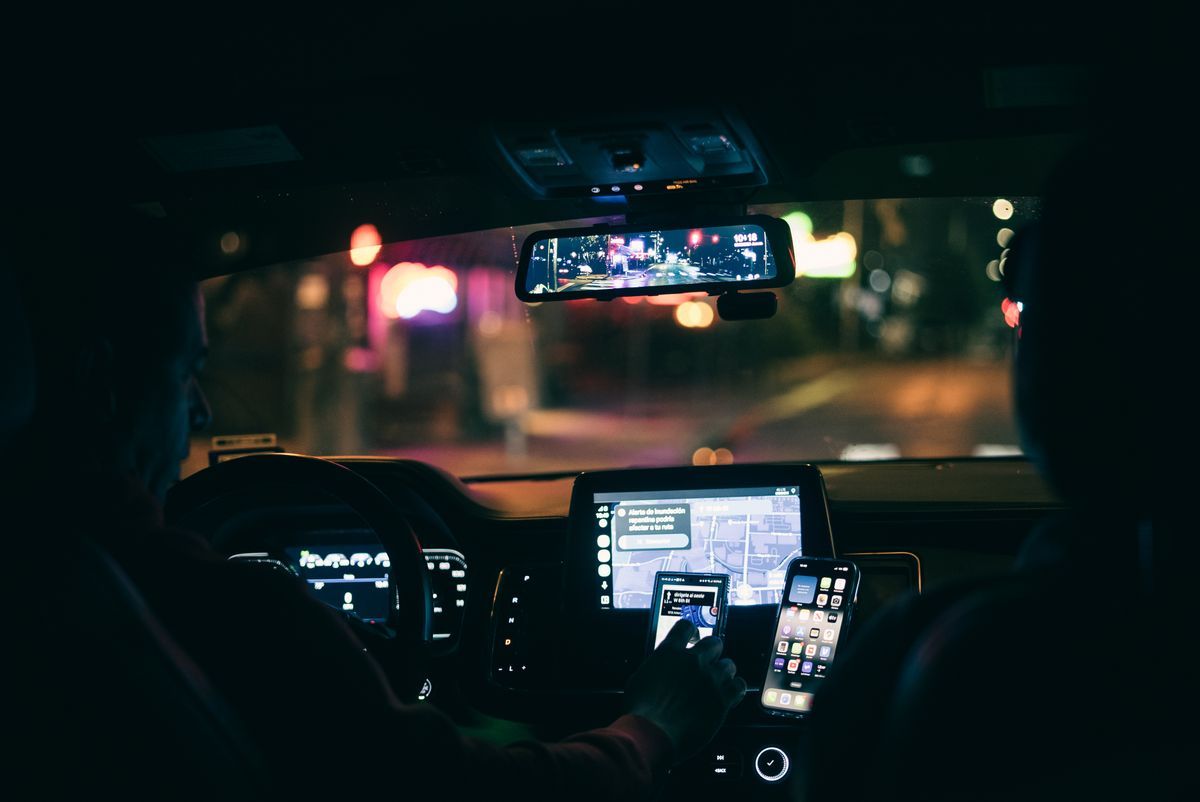
Inside a car at night, a driver follows smartphone navigation through city streets
When the Option Is Missing or the Voice Will Not Change
Symptom
Likely cause
Fix
No Voice selection on Android
App is out of date, or you are looking in the main settings list
Update Google Maps, then go through the profile picture, not the map menu
Voice selection greyed out or the download fails
No connection, or storage is full
Connect to Wi-Fi, free a little space, and tap the voice again
iPhone voice unchanged after picking a Siri voice
Google Maps was never fully closed, so it kept the old voice loaded
Swipe the app away in the app switcher and reopen it
Voice changed for directions but alerts sound different
Alerts use the system voice separately
This is normal; alert chimes and hazard warnings can keep the system voice
The voice speaks the wrong language entirely
The phone language and the app language disagree
Align them: iPhone language in system settings, Android in Voice selection
Voice works in the car only sometimes
Bluetooth connects after the route starts, so early instructions play on the phone
Wait for the car connection before starting navigation, or turn off Play voice over Bluetooth
Can You Get a Celebrity Voice or a Custom Voice?
Not inside Google Maps, and be wary of anything that promises otherwise. Google has run short promotions with celebrity voices in the past, but they were temporary, region limited, and removed afterward; there is no standing celebrity voice menu to unlock. Waze, Google's other driving app, is the one that regularly offers celebrity and character voices for limited runs. Apps that offer to record your own voice for Google Maps directions cannot do what they claim: Google Maps does not accept outside voice packs. Some separate navigation apps do support recorded voices, and some tools online build celebrity voices for videos, but neither changes the voice inside Google Maps itself. If the voice is your main complaint, the honest options are the accents in the real list, a different language you understand, or trying Waze for a season. Our three-way comparison, Apple Maps vs Google Maps vs Waze, covers how the apps differ beyond their voices.
Test the New Voice Before You Need It
Do not let a road trip be the first time you hear the new voice. Start navigation to anywhere, even the end of your street. Listen to the first two instructions. Check three things: the voice is the one you picked, the volume sits above your music and road noise, and the instructions come through the speaker you expect, phone or car. If you drive with a partner, this is also the moment to discover that one of you cannot stand the new accent, while changing it still costs nothing. If the voice is silent, work the troubleshooting table above before you touch anything else; nine times out of ten it is the mute cycle or a Bluetooth delay, not the voice change itself.
A final habit worth building: after any big phone update, glance at the navigation settings once. Updates occasionally reset guidance volume or the Bluetooth toggle, and discovering that on the motorway helps nobody. While you are in the settings, our guide to how to use Street View in Google Maps shows the other built-in feature most drivers never open.
Choosing a Voice You Can Actually Live With
The list invites novelty, but navigation is a safety feature, and the best voice is the one you understand at speed, half asleep, with rain on the windshield. A few grounded rules help. Pick an accent you hear every day: comprehension of familiar accents stays high when you are tired, while a fun accent you rarely hear costs attention on every instruction. If you are bilingual, consider navigating in your stronger listening language even if the phone lives in the other one; street names will sound odd, but distances and turns, the parts that matter, land instantly.
Parents often ask about softer or slower voices for anxious new drivers. Google Maps does not offer a speed control for its voice, but the calmer experience usually comes from the volume and cue settings rather than the voice itself: guidance volume at Normal instead of Louder, audio cues on so a gentle sound precedes each instruction, and a voice with a lower pitch, which most people rate as less startling. Set it up on a familiar route first, with the new driver choosing, not being surprised.
The Voice in the Car: Android Auto and CarPlay
When the phone drives a car screen, the voice still belongs to the phone. On Android Auto, the Google Maps voice is the one chosen in the phone's Voice selection, and the volume is usually the car's media or navigation volume, adjustable only while an instruction is speaking. On CarPlay, Google Maps uses the iPhone's voice settings, and Siri's voice choice applies. Two car-specific traps catch people. First, some cars route the prompt to a single speaker or lower the music only on one side; that is the car's design, not a setting you broke. Second, if prompts arrive a second late and clipped, the Bluetooth or car connection is buffering; the fix that works most often is to start navigation after the car connection is fully established, or to let the phone speaker carry guidance on that trip.
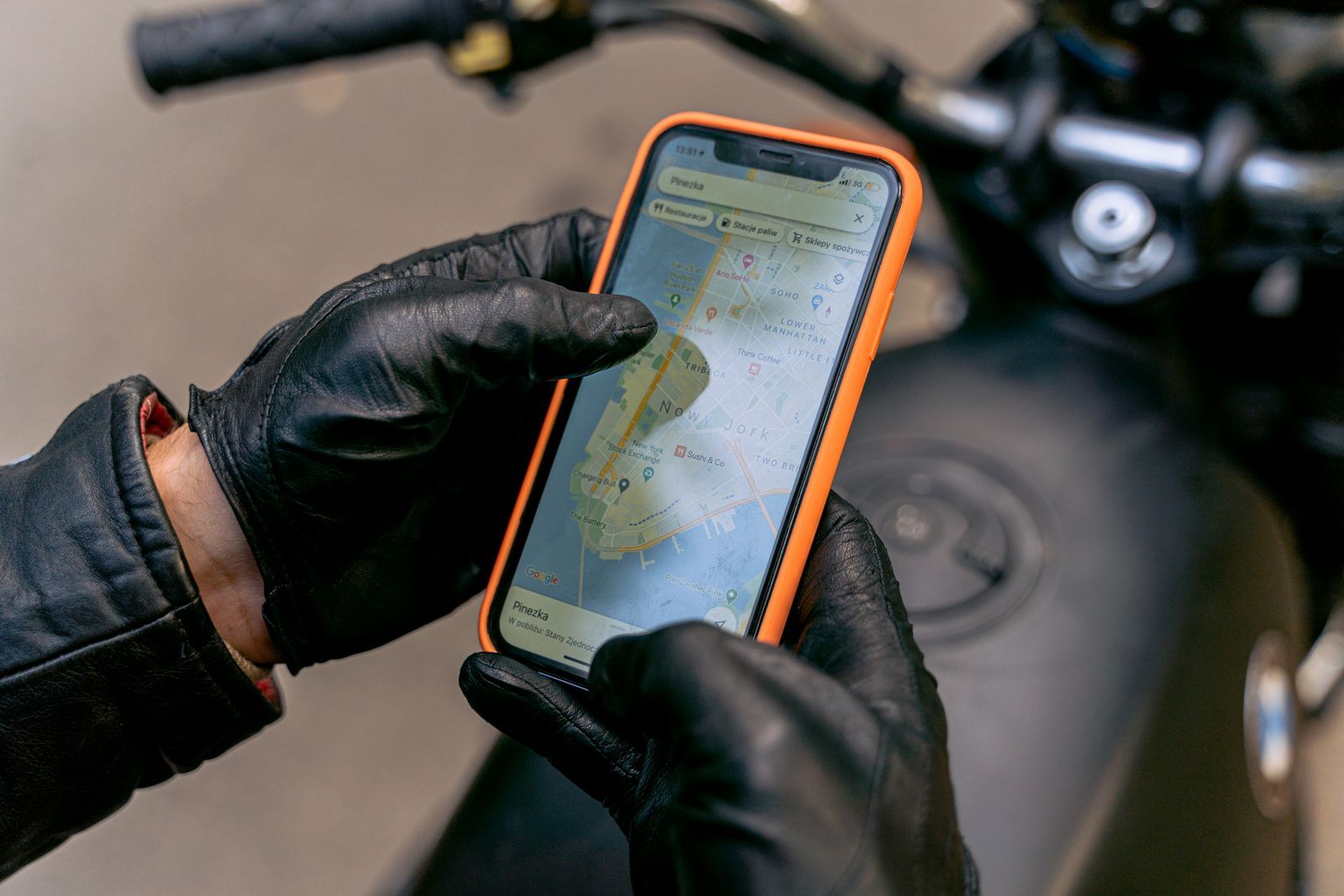
Trucks and motorhomes add one more consideration: a voice you can hear over a loud cabin. The motorcyclist in this article's opening photo faces the extreme version of the problem, wind noise swallowing instructions entirely. For two wheels, the answer is rarely a different voice; it is a helmet headset, the Louder guidance setting, and audio cues turned on, so a tone warns you a moment before the spoken turn. The same stack, minus the helmet, fixes most loud-cabin complaints in cars.
When Two Voices Talk at Once
Many cars have their own built-in navigation with its own voice, and a phone running Google Maps through the same speakers creates a duet nobody wants: two voices, two opinions, sometimes two different routes. Decide which system is navigating and silence the other properly. If the phone is navigating, do not start a route in the car's system at all; an unstarted car navigator stays quiet. If the car is navigating and you only want the phone for traffic or a passenger's searching, mute Google Maps guidance with the speaker icon on its navigation screen, or simply do not press Start on the phone route. The reverse trap is subtler: the car's voice keeps announcing its route while the phone screen shows yours, because a route was started in the car days ago and never cancelled. End the stored route in the car's menu and the ghost voice leaves with it.
Rental cars deserve one extra check. Previous renters leave phones paired and routes stored. Before a long rental drive, clear the car's navigation destination, set your own phone as the preferred audio source, and run the thirty-second test from the section above. It is far easier in the rental lot than at the first interchange.
Related Guides
This guide does not stand alone. The map app guides below take up the questions it leads into:
On Android it sits at profile picture, Settings, Navigation settings, Voice selection. On iPhone there is no Voice selection in the app at all; the voice follows the Siri voice and the phone language, both changed in the iPhone's own Settings.
Can I change the Google Maps voice to a male or female voice?
On Android, some languages offer more than one voice, and picking a different entry in Voice selection is how you switch. On iPhone, the voices available are the Siri voices for your language, chosen in Settings, Siri, Siri Voice. The choices vary by language and region.
Why does my Google Maps voice keep reverting?
Usually because the voice data was never fully downloaded, so the app falls back to the default, or because the app was updated and reset the setting. Reconnect to Wi-Fi, pick the voice again, let the download finish, and test with a short route before closing the app.
How do I make the navigation voice louder than my music?
Set Guidance volume to Louder in Navigation settings, and if you listen through the car, check the car's own volume while an instruction is playing, because many cars keep a separate volume for navigation prompts that only appears mid-instruction.
Can I use my own recorded voice in Google Maps?
No. Google Maps does not support custom or recorded voice packs. Anything advertising that ability is a separate app or a video tool, not a Google Maps feature.
Does changing the voice change the language of street names?
The voice and the display language travel together more than people expect. A voice in another language will usually pronounce street names in that language's style, and on iPhone, where the voice follows the system language, the app interface changes language too. If you only want a different accent, pick a different variety of your own language rather than a new language.
Photo credits: Antoni Shkraba (Pexels); Erik Mclean (Pexels). Photos are served from this site; follow the credit to the library page for the original.