The track tells the story before any setting does. You ran the loop, phone in a pocket, screen dark. The map at home shows your route faithfully until the moment the screen slept, then a straight line spears across the neighborhood, rejoining your real path minutes later. Or navigation, mid-drive, goes quiet and resumes a half mile after the turn. The instinct is to blame the GPS, the weather, the satellites. Almost always, the receiver was fine and the operating system had simply stopped letting your app listen. Modern phones ration background work aggressively, and a screen-off app that lacks the right permission tier or a battery exemption gets its location stream throttled or cut. This guide explains that mechanism and fixes it in the order that works.
Home / GPS and Navigation Guides
GPS Signal Lost When the Screen Is Off: The Permission and Battery Fix
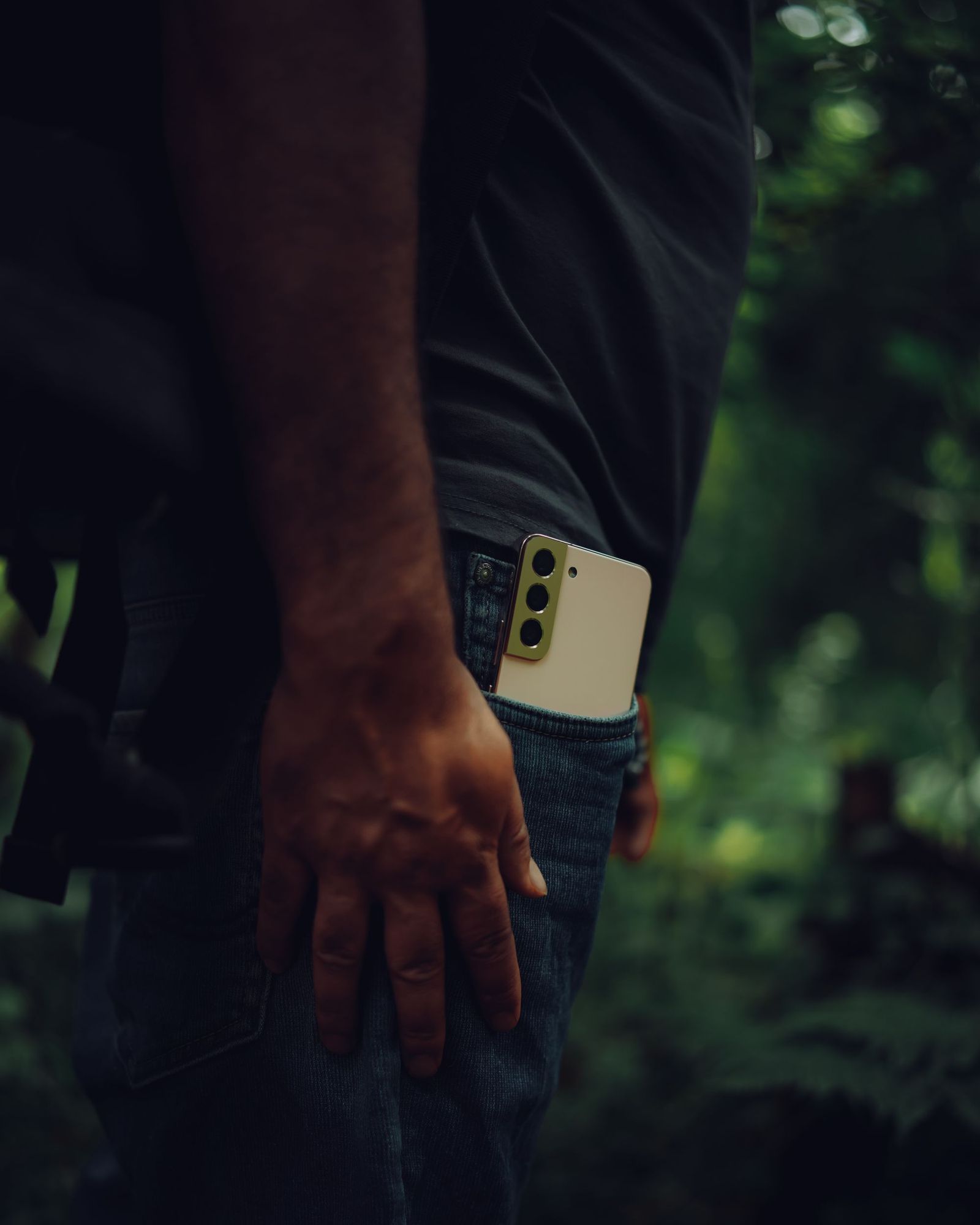
Photo: Imad Clicks / Pexels
Keep the Fix With the Screen Off: The Checklist
Check off each step as you finish it. Your progress stays on this page.
0 of 6 complete
0% done
The Mechanism: Two Gatekeepers, Permission and Battery
Two separate systems decide whether an app may use location with the screen off. The first is the location permission tier. Android and iOS both distinguish "while using the app" from "all the time" (Android) or "Always" (iOS). An app holding only the while-using tier is entitled to location while it is on screen or visibly active; lock the phone and its entitlement narrows or ends, by design. A tracking or navigation app that must record in a pocket needs the background tier, and it cannot grant it to itself: you assign it, in settings, often through a deliberately multi-step flow the platforms impose so the grant is a decision, not an accident. The second gatekeeper is battery optimization. Android's Doze and app standby systems, and the extra battery managers Samsung and other manufacturers layer on top, defer or kill background work for apps that have not been exempted. Samsung's own support documentation names the symptom plainly: apps put to sleep stop working in the background. Either gatekeeper alone can cut your track; both must be open for the screen-off fix to flow.
The Symptoms, Read Correctly
Learn the fingerprints so you fix the right fault. The straight line across the map is the signature of fixes that stopped and resumed: the app recorded where you were when the stream died and where you were when it revived, and drew the only line it could between them. Gaps clustered at the same elapsed time after screen-off, often a minute or a few minutes, point at a battery timer rather than signal, because satellites do not consult your screen's sleep schedule. Navigation that resumes late and then corrects in a rush is the same cut seen from the driver's seat. Contrast these with genuine signal loss, which our article on GPS signal lost covers: tunnels, garages, and urban canyons break tracks at places, not at screen states, and they break them with the screen on too. The diagnostic question that separates the two families is embarrassingly simple: does it happen with the screen on? If the track is clean while you watch it and broken when you do not, you are in this article, and the sky is innocent.
Fix One: Grant Background Location
On Android, open Settings, Apps, your tracking or navigation app, Permissions, Location, and select "Allow all the time" if the app needs to record with the screen off. On many phones the path runs through Settings, Location, App location permissions instead; either road reaches the same switch. On iPhone, open Settings, Privacy and Security, Location Services, choose the app, and set it to Always; while there, confirm Precise Location is on for it, since an approximate position makes a recorded track look drunk even when the stream never breaks. Grant this tier thoughtfully. It is the correct setting for the running app, the navigation app, and the hiking app you deliberately track with. It is not a setting to hand to a game or a shopping app that asks, and the platforms make it multi-step precisely so you notice the difference. The discipline is per-app: background location for the apps whose whole job happens in your pocket, while-using for everything else.
Fix Two: Exempt the App From Battery Optimization
With permission granted, open the second gate. On Android, find the app under Settings, Apps, then its Battery entry, and set it to Unrestricted, the tier that tells the system this app's background work is the point of the app. The wording varies, "Don't optimize" in the battery optimization list is the older phrasing, but the destination is the same: this app is exempt. Then check the manufacturer's layer, because it is a separate switch with separate opinions. Samsung's Device Care maintains its own sleeping and deep-sleeping app lists, and an app can be unrestricted in Android's settings and asleep in Samsung's; Samsung support directs users to remove the app from those lists and to lock it in the recent apps view if needed. Other manufacturers run equivalents under names like battery manager, app launch control, or power saver whitelist. The rule generalizes: there are always potentially two battery gatekeepers, the platform's and the vendor's, and the screen-off fix requires both to know your tracking app by name.

Fix Three: The App's Own Settings and the Foreground Service
Well-built tracking apps fight for their stream with a foreground service: a persistent notification that declares "I am recording" and keeps the app in the category the system is reluctant to kill. If your app offers a setting to show a persistent notification or to run as a foreground service, enable it and tolerate the notification; it is not clutter, it is the app's visa. Check also for in-app power or accuracy modes. Some trackers ship with a battery-saving recording mode that samples location sparsely by design, producing exactly the coarse, straight-lined tracks this article blames on the system. Read your app's recording settings once, set the interval to the fidelity you actually want, and know that the trade is real: continuous high-accuracy fixes cost battery, and the honest choice is yours to make per activity. What you are eliminating with this guide is the accidental cut, not the physics of the radio.
The Screen-Off Test: Prove It Before the Real Run
Do not discover the fix failed at mile nine. Reproduce the fault and the cure on a short, known loop, a ten-minute walk around the block. First, with your old settings, record the loop with the phone pocketed and screen off, and confirm the straight line appears; you now own a baseline. Apply the permission and battery fixes. Record the same loop the same way. A cured track follows the streets around every corner; a still-broken track tells you a gatekeeper remains, most often the vendor battery list, and the loop has cost you ten minutes instead of a race. This test is also the answer to give support forums and app developers: not "GPS broken," but a reproducible before-and-after on the same route. Our general guide to a phone whose device location is wrong covers the sibling problem, wrongness rather than absence; the screen-off family is distinguished by its loyalty to the screen state, and the loop test is how you prove which family you are in.
What It Is Not: Hardware, Cases, and Other False Trails
A few popular suspects deserve acquittal. Phone cases, including metal-accented ones, can marginally affect signal but do not produce cuts synchronized with the screen. A weak battery does not selectively kill location while the phone otherwise runs; the battery manager's software lists do that, which is why the fix lives in settings rather than in a new battery. Restarting the phone sometimes appears to fix the problem because it clears the app's slept state, until the battery manager sleeps it again; treat a restart as a diagnostic, not a cure. And the satellites themselves are the least likely culprits of all: the constellation does not know your screen exists. When the failure follows the screen state, the cause is on the phone, in the two gatekeepers and the app's own modes, and every one of them is a setting you own.
The iPhone Version of the Same Disease
iOS plays the same game with different labels, and iPhone owners meet the same straight lines. The permission tier is the first gate: an app set to "While Using the App" can be cut back when the screen locks unless it is actively running a recognized background mode, which proper tracking and navigation apps declare. The cure is the Always setting for the apps you track with, plus Precise Location, without which the system deliberately hands the app a fuzzed position that no recording can survive. The battery gatekeeper on iOS is quieter: there is no per-app unrestricted switch, but Low Power Mode throttles background work broadly, and iOS will curtail apps it judges abusive in the background. The practical iPhone routine is therefore short: Always permission and Precise Location for your tracker, Low Power Mode off during recorded activities, the app's own background or persistent mode enabled if it offers one, and the same ten-minute pocketed loop test to prove it. If an iPhone track still breaks only when the screen sleeps after all that, the remaining suspect is the app itself rather than the system, and its support channel deserves the before-and-after tracks as evidence.
Related Guides
This guide does not stand alone. The GPS and navigation guides below take up the questions it leads into:
- QField Offline Maps: Package a QGIS Project for Fieldwork Without a Signal: QField takes a QGIS project into the field and works entirely offline, but only if the project is packaged correctly first.
- How to Share Your Location on Snapchat: Snap Map, Live Sharing, and Ghost Mode: Snapchat location sharing lives on Snap Map, and it runs on its own rules.
- Offline Maps for Canada: Province Downloads, Federal Topo Sheets, and the Long Empty Highways: Canada breaks the usual offline map advice by sheer size: no rectangle covers it, and its most famous drives cross hundreds of kilometers of...
Frequently Asked Questions
Why does my GPS stop recording when the screen turns off?
Because with the screen off, your app needs two things it may not have: the background location permission tier ("Allow all the time" on Android, "Always" on iOS) and an exemption from battery optimization. Without them, the system throttles or stops the app's location stream to save power, and the track shows gaps or straight lines where the fixes stopped.
What does the straight line on my recorded track mean?
It means the app has a fix from before the stream stopped and a fix from after it resumed, and nothing in between. The app draws a straight segment between the two known points. Straight lines that begin when the screen sleeps are the fingerprint of a permission or battery cut, not of weak satellite signal.
Will setting an app to Unrestricted battery drain my phone?
It lets that one app work in the background as designed, which costs the power its work genuinely needs, such as continuous GPS during a recorded activity. It does not unlock anything while the app is idle and not recording. Exempt only the apps whose background work you actually want, like your tracker or navigation app.
My Samsung still kills the app after the Android settings. What is left?
Samsung runs a second battery manager in Device Care with sleeping and deep-sleeping app lists. Remove your app from those lists, set its Android battery usage to Unrestricted, and if needed lock the app in the recent apps screen. Samsung's own support names these lists as the reason apps stop in the background.
Does this affect car navigation too?
Yes, the same mechanism applies when the phone sleeps in a cradle or a pocket while navigating. Grant the navigation app background location and a battery exemption, and prefer keeping it plugged in and running as a foreground service during drives, which is the state navigation apps are designed for.
Photo credits: Imad Clicks (Pexels); Grigoriy Konsevich (Pexels). Photos are served from this site; follow the credit to the library page for the original.