An iPhone with bad GPS usually has good hardware and one wrong setting. The symptoms come in three shapes: no location at all (apps spin forever or say location unavailable), a dot that sits streets or a whole neighborhood away from you, and a dot that freezes or jumps. Each shape points at a different rung of the ladder below, so work down it in order and test after each step; most iPhones are fixed by rung two. This is the Apple companion to our GPS not working on Android guide; the satellite system is the same, but every switch named here is where iOS keeps it.
Home / GPS and Navigation Guides
GPS Not Working on iPhone: The Fix Ladder From Precise Location to Resetting Location and Privacy
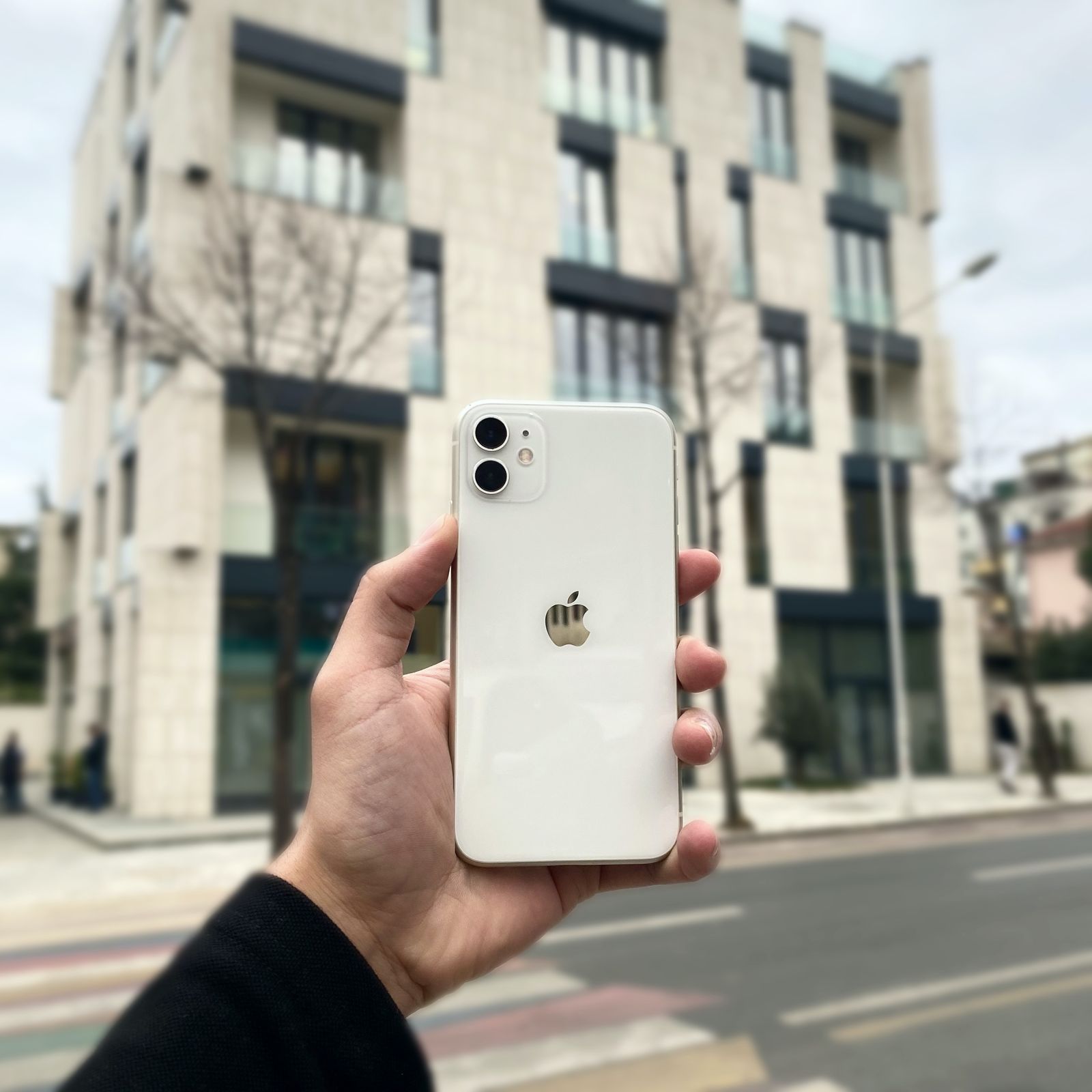
Photo: Kenejd Spahiu / Pexels
Interactive tool
The iPhone GPS Fix Ladder
Check off each step as you finish it. Your progress stays on this page.
0 of 7 complete
0% done
First, the Sixty-Second Triage: One App or Every App?
Open two different apps that use location, ideally Apple Maps and Google Maps, and compare. If only one app is wrong or blind, the fault is that app's permission, and rung two fixes it. If every app agrees on the same wrong place, the phone is being told something wrong at the system level, and the rungs on settings, time, and radios apply. If no app can find you at all, start at rung one. This single comparison saves more time than any individual fix, because iOS location problems split cleanly along it. Also glance at where you are standing: GPS needs sky. Indoors, in underground parking, and in dense downtown cores, every phone degrades, and Apple notes that a fix can take several minutes and depends on how many satellites are visible. Test fixes outdoors or by a window before concluding anything.
Rung 1: The Location Services Master Switch
Everything location on an iPhone passes through one switch: Settings, then Privacy and Security, then Location Services. If it is off, every app is blind and most will say so only vaguely. Turn it on. While you are on this screen, note the list of apps below it; you will return here for rung two. If the switch is on but grayed out, Screen Time restrictions are managing it (Settings, Screen Time, Content and Privacy Restrictions, Location Services), which happens on family-managed and work-managed phones.
Rung 2: Per-App Permission, and the Precise Location Toggle
This rung fixes the most common modern complaint, the dot that is roughly right but uselessly vague. Tap an app in the Location Services list and you get two decisions. The first is access: Never, Ask Next Time, While Using the App, or Always. Navigation and tracking apps need While Using at minimum; anything that records in the background, like the location history in our find your location history guide, needs Always. The second decision is the one people miss: the Precise Location toggle. With it off, iOS deliberately gives the app an approximate location, a circle kilometers wide, which is a privacy feature working as designed and a navigation disaster. If your dot sits in the right neighborhood but never on your street, Precise Location is off for that app. Turn it on for any app you actually navigate or track with, and leave it off for the apps you only want city-level weather from; that distinction is exactly what the feature is for.
Rung 3: Cycle the Radios With Airplane Mode
Location on a phone is a committee decision: satellites, Wi-Fi networks, Bluetooth beacons, and cell towers all vote, and sometimes the committee gets stuck with stale data. Toggling Airplane Mode on for fifteen seconds and off again forces every radio to re-register and the location system to rebuild its fix from scratch. Follow it with a plain restart of the iPhone if the dot still misbehaves; a restart clears a class of stuck states that no settings screen exposes. Test outdoors afterward, and give the phone a full minute or two: a cold GPS fix legitimately takes time, and Apple's own guidance is that accuracy builds as more satellites come into view. For reference, GPS.gov puts smartphone accuracy at about 4.9 meters in open sky once a good fix is established, so a settled dot should be on your building, not your block.
Rung 4: Date and Time, Set Automatically
GPS is a timing system at its core, and an iPhone with a manually set, wrong clock confuses its own location math and several location-dependent services. Go to Settings, then General, then Date and Time, and turn on Set Automatically. If it is already on, this rung costs you ten seconds and eliminates a whole category. This also matters after travel across time zones and after a phone has sat powered off for weeks, the two situations where manual or stale time most often appears.

Rung 5: Reset Location and Privacy
If the ladder so far has failed, reset the whole permission layer: Settings, then General, then Transfer or Reset iPhone, then Reset, then Reset Location and Privacy. This returns every app's location permission to undecided and clears accumulated location system state. It deletes no data and no accounts; the cost is that apps ask for location permission again the next time they need it, which is also the benefit, because a corrupted or forgotten permission decision is rebuilt cleanly. After the reset, open your map app, grant While Using or Always, confirm Precise Location is on, and test outdoors. This rung fixes the stubborn remainder: phones whose settings all look right and whose behavior says otherwise.
A Different Fault That Wears the Same Coat: The Compass
If your dot is in the right place but the direction cone points the wrong way, or the map rotates crazily while you stand still, your GPS is fine and your compass is the problem. The fixes are different: calibrate by moving the phone in a figure eight, and remove magnetic cases and mounts, which are the classic cause. Our dedicated guides to calibrating a cell phone compass and the Apple phone compass not working cover that fault in full. Separating position errors from heading errors is the diagnostic step most troubleshooting lists skip, and it decides which ladder you should be climbing at all. If the position itself wanders while the phone sits still on a table outdoors, that is a genuine fix-quality problem, and our why is my location not accurate explainer covers the environmental causes.
The Quiet Starvers: Battery and Background Settings
A second family of settings does not break location outright; it starves it slowly, and the symptom is a tracking app whose line goes vague or gaps whenever the screen is off. Low Power Mode throttles background activity across the phone, and location updates for backgrounded apps are among the things it rations; a tracker that works beautifully until 20 percent battery and then dissolves is usually meeting Low Power Mode, not a GPS fault. Background App Refresh, in Settings, General, decides whether an app may work when you are not looking at it; a navigation or logging app denied refresh can still locate you perfectly while open, which makes its background gaps look like satellite trouble when they are pure policy. Neither setting is a villain: both exist to save battery, and the fix is discrimination, not demolition. Leave the global settings alone, and grant the two or three location apps you actually rely on the permissions, refresh rights, and battery exemptions they need, while the weather widgets and shopping apps keep the frugal defaults. Location problems on a modern iPhone are as often an economy drive as a breakdown.
Why GPS Struggles in Specific Places: Cars, Canyons, and Cases
Even a healthy iPhone loses accuracy in predictable environments, and recognizing them stops you from resetting settings that were never wrong. Downtown cores bounce satellite signals off towers, a failure called multipath, so the dot slides along the street grid and occasionally teleports a block; walking to a corner with open sky settles it. Cars are metal boxes with coated glass: a phone in a center console or under a heated windshield works with a fraction of the sky it would see on the dashboard, which is why a mount on the dash or windshield fixes "car-only" GPS complaints. Underground and indoor locations have no satellite view at all, and the phone falls back to Wi-Fi and cell positioning, which is a neighborhood answer wearing a street answer's clothes. Magnetic accessories deserve a precise verdict: they disturb the compass, not the GPS, so a magnetic mount explains a spinning map but never a misplaced dot. If your problem appears in one environment and vanishes in another, the ladder above is not your fix; the environment is, and the honest repair is position and patience: more sky, more time.
When It Really Is the Phone
Settings explain nearly every case, but not quite all. Suspect hardware or a deeper fault when no app can get any fix outdoors after a full ladder including the reset, when the problem began immediately after a drop or water exposure, or when Wi-Fi and Bluetooth also misbehave (they share antennas and radios with the location system). Before booking a repair, update iOS to the current version, because Apple ships location fixes in system updates, and test once more after updating. If the phone is managed by an employer or school, check with the administrator too: management profiles can restrict location in ways the Settings app will not fully show you.
Related Guides
If this page answered part of the question, these GPS and navigation guides cover the rest of the same ground:
- Find My Location Not Working: What No Location Found Means and the Fix Ladder: When Find My shows No Location Found, a gray dot, or a position from hours ago, each message is a different failure with a different fix.
- GPS Not Working on Android Auto: Split Phone From Car, Then Fix the Right One: When navigation goes wrong on Android Auto, the fault lives in one of two machines, the phone or the car, and fixing the wrong one wastes an afternoon.
- GPS Signal Lost When the Screen Is Off: The Permission and Battery Fix: When a tracked run shows a straight line sliced across the park, or navigation wakes up half a mile late, the satellites are rarely to blame.
- Life360 Location Not Accurate: Fix a Pin That Is Stale, Drifting, or Stuck: A wrong Life360 pin is almost never a broken GPS.
Frequently Asked Questions
Why is my iPhone location wrong by a few streets?
The usual cause is the Precise Location toggle being off for that app, which makes iOS hand it an approximate location on purpose. Open Settings, Privacy and Security, Location Services, tap the app, and turn Precise Location on. Environmental blockage indoors and downtown can add error, but a consistent neighborhood-level offset is the toggle.
Why does my iPhone say location services are off when they are on?
Check the specific app's permission in the same list: the master switch can be on while an individual app is set to Never. If the master switch itself is grayed out, Screen Time restrictions are managing it, under Settings, Screen Time, Content and Privacy Restrictions.
What does Reset Location and Privacy actually do?
It clears every app's location permission back to undecided and resets location system state, without deleting any data. Apps simply ask again the next time they need your location. It is the right final step when all settings look correct but behavior is still wrong: Settings, General, Transfer or Reset iPhone, Reset, Reset Location and Privacy.
How accurate should iPhone GPS be?
In open sky, smartphone GPS is accurate to about 4.9 meters according to GPS.gov, once the fix has settled. Expect worse indoors, in parking structures, and among tall buildings, and expect the first fix after a cold start to take a minute or more while the phone acquires satellites.
My location dot is right but the direction is wrong. Is that GPS?
No, that is the compass, a separate sensor with separate fixes: calibrate it with a figure-eight motion and check for magnetic cases or mounts. Position errors and heading errors look similar in a map app but are diagnosed and repaired completely differently.
Photo credits: Kenejd Spahiu (Pexels); Kaique Rocha (Pexels). Photos are served from this site; follow the credit to the library page for the original.