Android Auto navigation failures have a special talent for wasting time, because the system has two brains and the symptom, a car icon drifting off the road, sitting a street away, or spinning in a parking lot, looks identical whichever brain is confused. Drivers reinstall apps on the phone when the car's receiver is at fault, and blame the car when the phone's own position was wrong before it ever reached the dashboard. So this guide refuses to fix anything until you have run the split: one comparison, phone against car display, that assigns the fault to the right machine. Everything after that is a short ladder for whichever side lost. If you have fought this problem with random restarts and cable swaps, the split is the part you were missing.
Home / GPS and Navigation Guides
GPS Not Working on Android Auto: Split Phone From Car, Then Fix the Right One
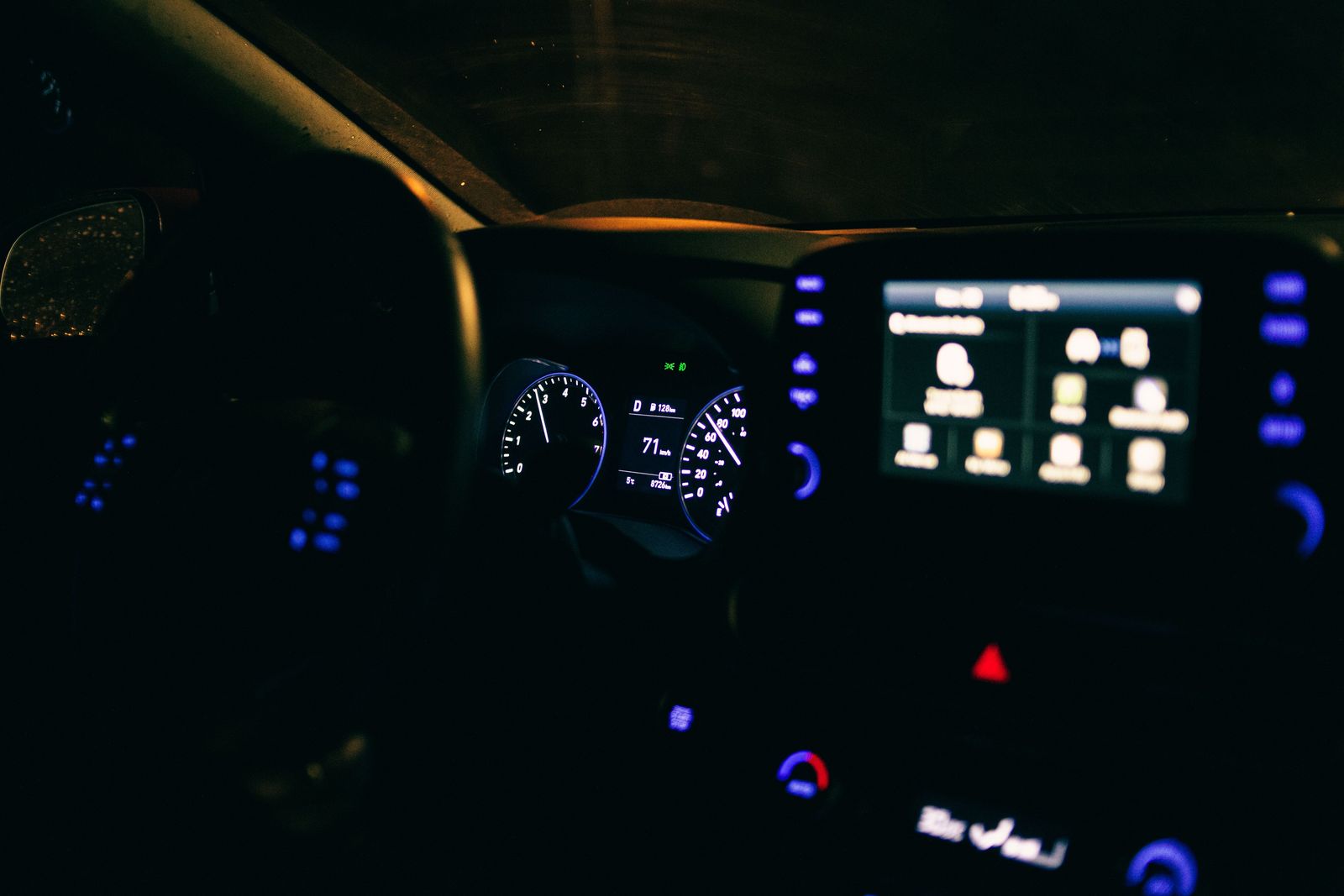
Photo: Erik Mclean / Pexels
Phone Side or Car Side: The Android Auto GPS Checklist
Check off each step as you finish it. Your progress stays on this page.
0 of 8 complete
0% done
The One-Minute Split
Park somewhere safe with a clear view of the sky. On the car display, start Android Auto and look at the car icon's position in Google Maps. Now pick up the phone, open Google Maps on the phone itself, and look at its blue dot. Three outcomes are possible. Both wrong, in the same way: the phone is producing a bad position and faithfully handing it to the car. Fix the phone; the car is innocent. Phone right, car wrong: the phone knows where it is and something between the phone and the display, or inside the car's own positioning, is corrupting it. Fix the car side. Both right while parked, wrong while driving: suspect the compass and calibration first, then the car side, because motion is what exposes a bad heading. Write down which outcome you got. Every rung below belongs to one side of this split, and climbing the wrong side's ladder is how this problem eats weekends. Our guide to how to use Google Maps with Android Auto covers the everyday setup this troubleshooting assumes.
Phone Side, Rung 1: Location Accuracy and Permissions
If the phone lost the split, begin with the setting Google built for exactly this. In Android Settings, under Location, find Location services and turn on Google Location Accuracy, also labeled Improve Location Accuracy. With it on, the phone fuses satellite fixes with Wi-Fi scanning, cell towers, and its sensors; with it off, the phone navigates on raw satellites alone, and in cities, under trees, and in rain it shows. Next, permissions: Google Maps and Android Auto need location permission set to precise, not approximate. Approximate location is a privacy feature that deliberately reports a blurred position, and a navigation app fed a blurred position will wander exactly the way yours is wandering. Grant precise, grant it while using the app at minimum, and let Android Auto inherit it. Then check Battery Saver and any battery optimization aimed at Maps or Android Auto: a phone saving power by throttling location is a phone choosing your battery over your route. Our broader GPS not working on Android guide goes deeper on the phone alone; the rungs here are the ones that matter once a car display is involved.
Phone Side, Rung 2: The Compass and the Spinning Map
A position can be right while the direction is wrong, and direction errors are compass errors. The symptom is a map that rotates lazily, points the car down side streets it is not on, or needs a hundred meters of driving to figure out which way is forward. Calibrate the phone's compass with the figure-eight motion: hold the phone and sweep it through a wide figure eight, several times, away from the car's metal and magnets, ideally standing outside the car. In Google Maps, tapping your blue dot offers a calibration flow that grades your compass accuracy as you go; aim for High. Magnetic phone mounts and cases deserve suspicion here, because a magnet strong enough to hold a phone at highway speed is strong enough to argue with its compass all day. If the spinning began the week a magnetic mount arrived, you have met your cause. Our calibrate your cell phone compass guide covers the technique in full.
Car Side: When the Vehicle Feeds the Position
Here is the fact that surprises most drivers: Android Auto can take location from the car. Many vehicles, and many aftermarket head units, have their own GPS receiver with an antenna on the roof, and Android Auto may use the car's position data when the car offers it, which is usually a favor, a roof antenna sees more sky than a phone in a cup holder. But it means a failing car receiver, a damaged antenna, or an aftermarket unit with its GPS puck tucked under a metal dashboard produces perfect phone positions and a lost car icon, the phone-right-car-wrong split exactly. If your car lost the split, the checklist is physical: on an aftermarket install, find where the GPS antenna was placed and get it a clear view, on top of the dash or under glass, never buried behind metal; on a factory system, check whether the car navigation, if it has one, is also lost, because a car whose own navigation agrees with Android Auto's wrongness has a receiver problem, not an Android Auto problem. And keep the connection honest: the cable or wireless link carries the data, and a flaky cable corrupts many things, but it does not invent a consistent wrong position; a steady wrong fix is a receiver, not a cable.
Wired or Wireless: What the Connection Changes and What It Does Not
Drivers often ask whether switching from a cable to wireless Android Auto, or back, will fix a GPS problem, and the split gives the disciplined answer: the connection carries data between the phone and the head unit, and it does not decide whose position is used or how good that position is. A wired connection with a worn cable produces dropouts, freezes, and restarts, failures of continuity. A wireless connection removes the cable failure and adds its own variables, a Wi-Fi link between phone and car that can be busy or weak. Neither manufactures a steady wrong position. If your icon holds the wrong road smoothly and continuously, changing how the phone connects will change nothing except your frustration's flavor, because the fault is upstream, in a receiver, an antenna, a permission, or a compass. There is one honest exception worth knowing: some aftermarket wireless adapters and head units interpose their own hardware in the chain, and a unit with its own GPS receiver can become the position source. If the wrongness began the week a new adapter or head unit arrived, put that hardware on the car-side checklist next to the antenna. Otherwise, keep the connection question and the position question in separate boxes, and let the split, not the cable drawer, direct the repair.
A Second Phone Settles It
When the ladder has been climbed and doubt remains, borrow certainty: connect a different phone to the same car and drive the same streets. If the second phone navigates perfectly through the same head unit, the car side is exonerated and your phone owns the fault, however unfair that feels after its settings all read correctly; the remaining suspects are its radios, its case and mount, and its software state, up to and including a factory reset done with backups in place. If the second phone is lost in exactly the same places, your phone is exonerated and the car's receiver or antenna owns it, and the path leads to the installer or the dealer with evidence in hand. Mechanics and support lines both respect this test because it converts an opinion into a controlled experiment, one variable changed, the rest held still. It is the same logic as the original split, extended: compare, assign, then fix. Every hour spent guessing at this problem is an hour the comparison would have settled in ten minutes.
The Fix Order That Respects the Split
Once the split has assigned the fault, the order of operations is short. Phone side: Location Accuracy on, precise permission granted, Battery Saver off for the drive, compass calibrated, then a phone restart, then, and only then, clearing the Maps cache. Car side: antenna placement verified, the car's own navigation checked for agreement, the head unit restarted, and the phone re-paired if the wrongness began after an update on either side. At every step, retest with the same comparison you started with, parked, phone dot against car icon, then a short drive. Google describes phone GPS as typically accurate to roughly 20 meters in good conditions, and that is the right expectation to hold: a fix bouncing within a car park's width in open sky is normal behavior, while a fix holding the wrong street, the wrong side of a river, or a heading that will not settle is a fault worth this ladder. If both sides pass every rung and the icon still wanders, our guide to improve GPS accuracy works the phone's positioning harder, and a dealer or installer visit for the car's receiver stops being a defeat and becomes the correct next step.
Related Guides
Readers working through this topic usually need its closest companions too. These GPS and navigation guides cover the neighboring ground:
- GPS Signal Lost When the Screen Is Off: The Permission and Battery Fix: When a tracked run shows a straight line sliced across the park, or navigation wakes up half a mile late, the satellites are rarely to blame.
- Offline Maps Not Working: The Diagnostic Ladder, From Wrong Area to Reinstall: When offline maps fail, they fail in one of three ways, and each has its own cure: the area was never really downloaded, the download exists but...
- Life360 Location Not Accurate: Fix a Pin That Is Stale, Drifting, or Stuck: A wrong Life360 pin is almost never a broken GPS.
Frequently Asked Questions
Why is my car icon on the wrong road in Android Auto?
Run the split first. If the phone's own blue dot is on the same wrong road, the phone is producing the bad fix: turn on Location Accuracy, grant precise location permission, disable Battery Saver, and calibrate the compass. If the phone is right and only the car display is wrong, the vehicle side is at fault, often its own GPS receiver or a badly placed aftermarket antenna, because many cars feed their position to Android Auto.
Does Android Auto use the phone's GPS or the car's GPS?
It can use either. Android Auto displays the position it is given, and many cars and aftermarket head units supply their own GPS data, from a roof antenna, which is often better than a phone buried in the cabin. That is why the phone-versus-car comparison is the essential first test: it tells you which receiver is actually steering the icon.
Why does the map spin or point the wrong way when I set off?
That is a compass problem, not a satellite problem. The phone knows where it is but not which way it faces until motion sorts it out. Calibrate the compass with the figure-eight motion until Google Maps reports high accuracy, and suspect magnetic mounts and cases, which can bias the compass continuously.
Will a better cable fix my Android Auto GPS?
A failing cable causes disconnects, stutters, and dropouts, and replacing a worn cable is cheap and worth doing. But a cable does not generate a steady, consistent wrong position. If the icon is reliably on the wrong street, look at receivers, antennas, permissions, and calibration, in the order this guide gives.
How accurate should Android Auto GPS be?
Expect phone-class accuracy: Google describes typical GPS accuracy as roughly 20 meters in good conditions, so small bounces in open sky are normal. A position that holds the wrong road, lags turns badly, or never settles its heading is beyond normal and worth the phone-side and car-side ladders in this guide.
Photo credits: Erik Mclean (Pexels); Dev Raj (Pexels). Photos are served from this site; follow the credit to the library page for the original.