The blue arrow is the default stand-in for your car in Google Maps navigation, and it is also one of the most personalizable pixels in the app: Google lets you replace it with a vehicle icon or recolor it, in a small tray of choices built into the navigation screen. Almost nobody finds it, because the switch is not in Settings. It lives in the one place most people never tap during a drive, the arrow itself. This guide walks the exact steps, explains what the choices are and are not, and clears up the two confusions that send people hunting through the wrong menus: the belief that the icon is an account setting, and the belief that a different icon changes how navigation behaves. It does not. It changes what represents you on the map, nothing more, and knowing that upfront saves a lot of menu archaeology.
How to Change the Car Icon in Google Maps: Swap the Blue Arrow for a Vehicle
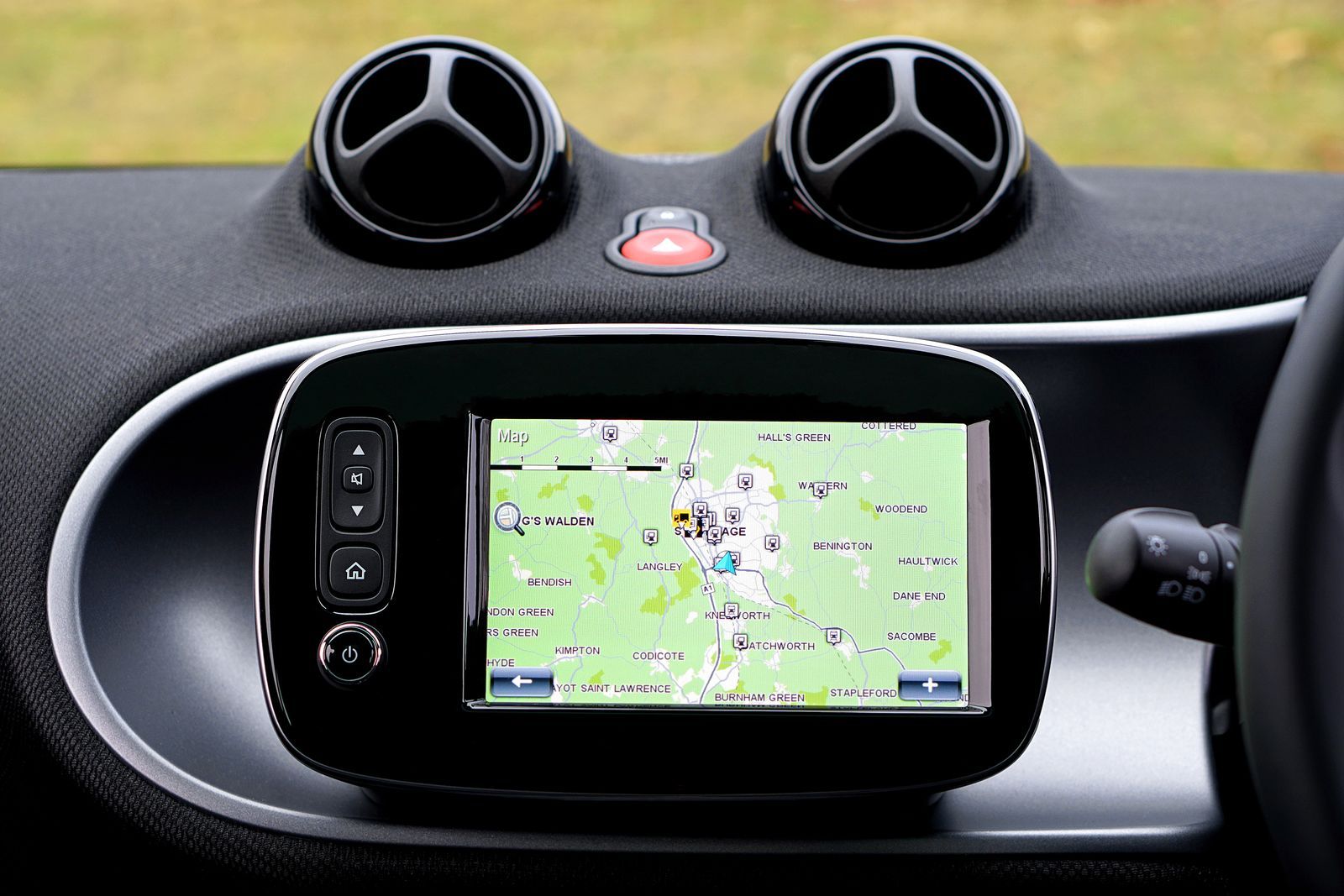
Photo: Mike Bird / Pexels
Pick Your Arrow: The Car Icon Checklist
Check off each step as you finish it. Your progress stays on this page.
0 of 8 complete
0% done
The Short Answer: Tap the Arrow While Navigating
The whole procedure is four taps, and it only exists while a route is running. Start navigation to any destination, the way you normally would. Once the turn-by-turn screen is up and the blue arrow is moving with you, tap the arrow itself. A tray opens along the bottom of the screen offering the icon choices: the classic arrow in a range of colors, and a set of vehicle bodies that stand in for different kinds of car. Tap the one you want and it replaces the arrow immediately, mid-route, with no restart and no confirmation dialog. Close the tray and drive. That is the entire feature. If you have ever scrolled the Settings menus looking for a vehicle or avatar option and come up empty, this is why: Google put the picker on the navigation surface, where the icon it controls actually appears, and nowhere else.
Step by Step on Android and iPhone
The steps are the same on both platforms, because the navigation screen is the same. First, search for a destination and start navigation so the turn-by-turn view is active; the picker does not appear on the plain map or on the route preview. Second, tap directly on the blue navigation arrow, the marker that shows your position and heading. Third, browse the tray that slides up: swipe it to see every arrow color and vehicle style your version of the app offers. Fourth, tap a choice and watch the marker change in place. Fifth, to change back, tap the marker again and pick the default arrow. Two practical notes. Do this while parked, at the start of the trip, not at highway speed; the tray demands your eyes for several seconds. And if tapping the arrow seems to do nothing, zoom state and Driving mode can interfere: make sure you are in the standard navigation view, following a route, rather than in the compass-follow or preview modes.
What You Can Pick, and What You Cannot
The tray offers two families of choice. The first is the familiar navigation arrow, offered in multiple colors, so the arrow can stay an arrow but stop being blue. The second is a set of stylized vehicle icons, little top-down car bodies of different shapes and colors that sit on the route line where the arrow used to be. What the tray does not offer matters as much. There is no custom image upload: you cannot use a photo of your own car, a logo, or a downloaded icon pack. There is no per-account garage of saved vehicles to sync. And the exact roster of colors and bodies is served by the app and can change between versions and rollouts, which is why this guide deliberately does not print a fixed count of options: a number that was right in one release is wrong in the next, and the tray in front of you is the only authoritative list. Pick from what your tray shows, and treat any article that promises a specific number of unlockable vehicles with suspicion.
Why the Setting Is Not in Settings
The misplacement confuses people because Google Maps has a deep Settings tree, including a Navigation settings page, and a personalization option feels like it belongs there. Some guides and some app builds have shown appearance options appearing in settings areas during rollouts, and you may find screenshots online that disagree with your phone. Treat those as what they are: evidence of a feature Google has experimented with placing in more than one home. The route that Google documents and that works across versions is the in-navigation one, tapping the arrow during a route. If a settings-based option exists on your build, it leads to the same tray. The other half of the confusion is storage: the icon choice is kept on the device, with the app, not in your Google account. Sign into Maps on a second phone and your vehicle does not follow you; reinstall the app and the arrow returns until you pick again. That is not a sync failure. It is how the feature is built, as local decoration rather than account identity.
When the Icon Resets or Will Not Change
Three situations cover nearly every complaint. The first is the reset: after an app reinstall, a phone change, or occasionally a major update, the marker reverts to the blue arrow. Nothing is broken; the local preference is gone, and thirty seconds in a navigation session restores your choice. The second is the missing tray: you tap and tap and no picker appears. Check that you are genuinely navigating, with a route active and guidance running, and that you are tapping the position marker itself rather than the route line or a nearby label. In Android Auto and in the simplified driving interfaces, the phone's navigation surface is replaced by the car's, and the picker belongs to the phone view; set the icon in the phone app first. The third is the wrong problem entirely: the icon changes fine, but it points the wrong way or sits off the road. That is not an icon issue at all, it is a position and heading issue, and no vehicle body will fix it. Our guide to a GPS location jumping around covers the sensor and signal causes behind that behavior.
Pick for the Glance, Not the Garage
Since the choice costs nothing and changes nothing mechanical, the only real criterion is how the icon performs in its one job: being recognized instantly at driving glance distance. High contrast against the map is what does that work. The default arrow earned its place by being a strong shape in a strong color, visible against city grids and pale rural maps alike. Vehicle icons trade a little of that punch for charm: they are wider, softer shapes, and in dense downtown maps a light-colored vehicle body can wash out against light map styling where the saturated arrow would not. Dark map styles invert the problem. None of this argues against the vehicle icons; it argues for testing your pick the way you would test any instrument, on a real route, in daylight and at night, and noticing whether your eye finds the marker without hunting. If it does, the icon is doing its job and the personality is free. If you catch yourself searching for your own car on your own map, switch back without sentimentality. The arrow will not be offended, and the tray is always four taps away when a long road trip makes the novelty worth it again.
The Same Question in Other Apps
Drivers who use more than one navigation app notice quickly that each one answers the icon question differently, and the differences explain Google's design. Apple Maps offers no vehicle picker at all: your position is a blue arrow or dot, full stop, and personalization stops at map style and voice. Waze goes the other direction, with vehicle choices buried in its settings alongside the mood icons it shows to other drivers, because Waze treats the marker as part of a social profile. Google Maps sits between the two philosophies. The icon is personal but not social: nobody else sees your little vehicle, it never leaves your screen, and it is not tied to the identity other Google services know. That in-between position is exactly why the picker lives where it does, on your navigation screen and in no account menu. It also explains the absence of sync: a preference that exists only for your eyes, on one screen, has nothing to synchronize. If you split your driving between apps, expect to make the choice separately in each one that offers it, and expect the trays to differ, because each app serves its own roster of icons from its own servers.
What the Icon Does Not Change
It is worth stating plainly, because the vehicle shapes invite the thought: the icon is a costume, not a calibration. Swapping the arrow for a car does not make your position more accurate, does not change how Maps calculates your heading, does not affect arrival times, lane guidance, or speed readings, and does not tell Google what you actually drive. A truck-shaped icon does not unlock truck routing, and a sports car shape does not make the route faster. The marker's job is orientation and a little personality: at a glance, in a dense map, the shape you chose is unmistakably you. Everything underneath, the blue dot logic, the GPS fix, the route engine, runs exactly as it did with the arrow. Drivers who want the features that do change the drive itself should look at things like adding a stop in Google Maps mid-route, dropping a pin to mark a place precisely, or the comparison in Google Maps vs Waze if the whole navigation personality is up for review.
Related Guides
Readers working through this topic usually need its closest companions too. These map app guides cover the neighboring ground:
- Google Maps for Boats: What It Can and Cannot Do on the Water: Google Maps has no boat mode, and the reasons are matters of safety, not missing features: it carries no depth soundings, no channel markers or...
- How to Change Your Home Address in Google Maps: The Account Route That Actually Sticks: Most guides for changing your Home address in Google Maps send you down a retired path through Saved and Labeled, which is why the change so often...
- How to Find Your Parked Car With Google Maps: Save the Spot, Add the Note That Actually Matters: Google Maps can remember where you parked, automatically when your phone disconnects from the car or manually with two taps on the blue dot.
Frequently Asked Questions
Where is the car icon setting in Google Maps?
It is on the navigation screen, not in the Settings menus. Start a route so turn-by-turn navigation is running, then tap the blue arrow that marks your position. The icon tray opens from there. Some builds have experimented with settings placements during rollouts, but the in-navigation tap is the documented route that works across versions.
Can I use a photo of my own car as the icon?
No. Google Maps only offers the built-in choices in the tray: the navigation arrow in a selection of colors and a set of stylized vehicle icons. There is no upload option, no custom image support, and no way to import an icon from another app.
Does the car icon sync to my other phones?
No. The choice is stored on the device with the app, not in your Google account. A new phone, a second phone, or a fresh install starts from the default blue arrow, and you pick the icon again on each device you want it on.
Why did my icon change back to the blue arrow?
The local preference was cleared, most often by reinstalling the app, switching phones, or a major update. The feature itself is unaffected. Start any route, tap the arrow, and choose your vehicle again; the whole fix takes under a minute.
Does choosing a vehicle icon change how navigation works?
Not at all. The icon is purely cosmetic. Your position accuracy, heading, arrival estimates, lane guidance, and routing are calculated exactly the same way regardless of which marker represents you, and a truck-shaped icon does not enable truck routing.
Photo credits: Mike Bird (Pexels); Mike Bird (Pexels). Photos are served from this site; follow the credit to the library page for the original.