Google Maps Add a Stop: Multi-Stop Routes and Stop Order, Explained
By the Osm4People editorial team
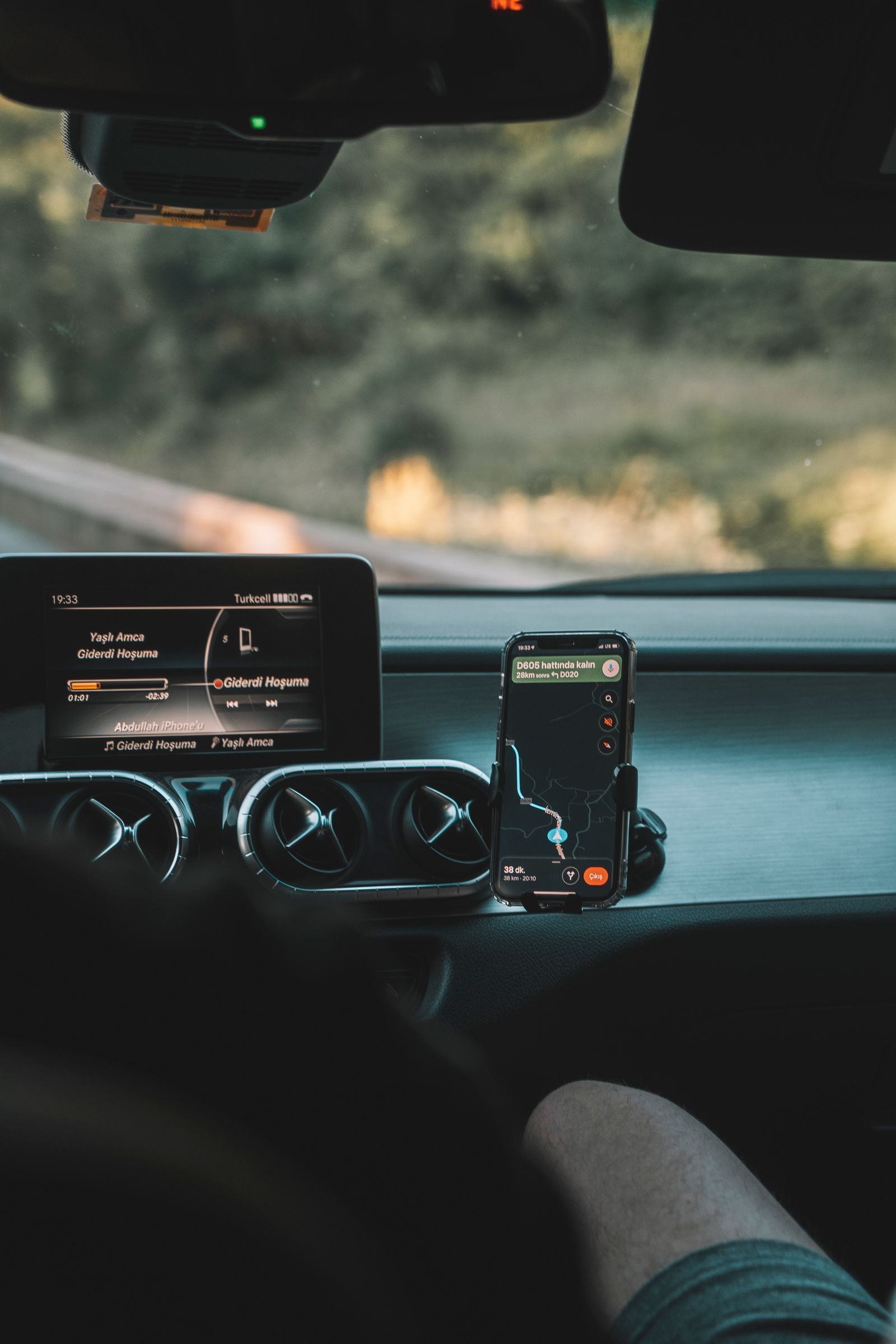
Photo: Yusuf Gündüz / Pexels
You have three errands and one tank of fuel, and you want Google Maps to thread them into a single route instead of three separate trips. That is what adding stops does. Confusion creeps in because Maps offers the ability in two different moments: while you are planning a route, before you set off, and while you are already navigating, when a new errand appears mid-drive. The buttons live in different places in those two moments, and most short guides teach only one of them. This article teaches both, with the menu names as they appear today, then covers the rules of the game: how many stops you may add, how to order them so the route makes sense, and why the option sometimes vanishes.
Everything below works in the Google Maps app on Android and iPhone unless a step says otherwise, and the desktop differences are flagged where they exist.
Interactive tool
Add a Stop: Route Checklist
Check off each step as you finish it. Your progress stays on this page.
0 of 7 complete
0% done
Method One: Add Stops Before You Start Driving
Open Google Maps and tap the blue Directions arrow, or search for your final destination and tap Directions.
Confirm the top field is your starting point (usually Your location) and the second field is your final destination.
Tap the three dots in the top right corner of the directions screen.
Tap Add stop. A new empty field appears in the list.
Type the stop's name or address and pick it from the suggestions.
Repeat steps 3 to 5 for each additional stop. You can add up to nine stops in total, including your final destination, so eight intermediate stops plus the end point.
Tap Done, review the full route, and tap Start when you are ready.
On a computer, the same idea wears different clothes: plan a route on the Google Maps website, then click Add destination under the destination field to add each further stop. The list grows downward, and the route redraws as you add.
Method Two: Add a Stop While Already Navigating
Mid-drive, the three-dot menu from planning is not where you are. Use the search route instead.
While navigation is running, tap the magnifying glass (Search) icon on the navigation screen.
Either pick one of the quick categories offered along your route, such as gas stations, restaurants, or coffee, or tap the search field and type a specific place.
Tap the place you want. Its card shows how much time the detour adds.
Tap Add stop. Navigation rebuilds the route: the new stop first, then your original destination after it.
This is the right way to find fuel or food on a long drive without abandoning your route. The category results are deliberately biased to places near your path with small detours, which is exactly what a moving driver wants. When you finish at the added stop and set off again, Maps resumes guiding you to the original destination on its own.
Ordering Your Stops: The Geographic Method
Google Maps visits your stops in the order you list them. It does not rearrange them into the smartest sequence, a fact that surprises almost everyone the first time. The order is yours to fix, and fixing it is easy once you see the trick.
To reorder, open the directions list before starting, press and hold the two-line handle beside a stop, and drag it up or down the list. On desktop, the same drag works with the mouse.
How should you order them? Think geographically, not by errand importance. Look at the map and arrange the stops as a chain that keeps moving in one general direction, like beads along your path from start to finish, instead of zigzagging back across town. A worked example: you leave home in the north of town and your final destination is a friend's house in the south. The pharmacy sits just east of home, the bakery is midtown, and the hardware store is a few streets from your friend. Ordered pharmacy, bakery, hardware store, the route flows south in one pass. Ordered hardware store first, the app obediently drives you south, then back north, then south again, and doubles your trip while following your instructions perfectly.
For two or three stops, common sense on the map is enough. For a full nine-stop day, sketch the order on paper first: list the stops, glance at each one's position relative to your start and finish, and chain them. Delivery drivers who do this professionally use dedicated route planners that optimize dozens of stops automatically; for everyday errands, the geographic chain gets you nearly the same result for free.
The Limits, in One Table
Rule
What it means for you
Maximum nine stops, final destination included
Eight errands plus home is the ceiling per route
Stops work for driving, walking, and cycling
Transit and flight directions cannot take added stops
Order is exactly as listed
Maps never reorders for you; drag to fix the chain
Each stop can be removed individually
Tap the X beside a stop in the planning list
The whole route can be shared
Use the three-dot menu, Share directions, so a passenger sees the same plan
The transit limit deserves one extra sentence, because it is the most common source of the missing option: if your directions are set to the train icon, there is no Add stop, by design. Switch to driving or walking and it returns.
A woman crosses a city street holding a coffee while checking her smartphone
When Add a Stop Is Missing: Troubleshooting
Symptom
Likely cause
Fix
No Add stop in the three-dot menu
Travel mode is transit or flights
Switch to driving, walking, or cycling
The three-dot menu itself is missing
You are on the place card, not the directions screen
Tap Directions first, then look for the dots
Add stop is grayed out mid-drive
You are in Android Auto or CarPlay simplified view
Use the search icon method, or ask a passenger to add it on the phone
The option vanished after an update
Menu moved in a redesign
Look under the three dots on the directions screen; this is its current home
Nine stops reached
The route is full
Split the day into two routes, morning and afternoon
One more scenario: if you planned the route on your computer and sent it to your phone, multi-stop plans transfer imperfectly on some versions, arriving as a single destination. Plan multi-stop routes directly in the app when the stops matter.
A Complete Worked Example: The Saturday Chain
Let us run the whole method on a realistic morning. You start at home. Your final destination is your sister's house across town at noon. Between them: the pharmacy (prescription ready now), a bakery (order collected by 11), and a garden center (a bag of compost that cannot sit in a hot car for hours).
Step one, plan the route to the final destination first: home to sister's house. Step two, add stops in list order as they occur to you: pharmacy, bakery, garden center. Step three, now apply the geographic method. Look at the map: the pharmacy is two streets from home, the garden center is midtown, and the bakery is one street from your sister's. The correct chain is pharmacy, garden center, bakery, and it is also the chain that respects the errands themselves: the compost rides for the shortest time, and the bakery order, collected last, arrives freshest. Drag the stops into that order using the handles, tap Done, and compare the total time against the naive order if you want to see what the method saved you; on a cross-town chain like this, fifteen to twenty-five minutes is typical.
Step four, sanity-check the route line on the map for nonsense: a loop, a backtrack, a stop pinned on the wrong side of a divided road. Step five, tap Start and drive. If a stop falls through mid-trip, the pharmacy is closed despite its listing, remove it from the route steps panel and the chain heals around the gap.
That five-step habit, plan, add, order geographically, sanity-check, drive, is the entire skill. Everything else in this article is reference material for when the habit meets an exception.
Walking and Cycling Multi-Stop Routes
Driving gets the headlines, but the same Add stop machinery serves walkers and cyclists, and for them the ordering method matters even more, because a backtrack costs legs, not fuel. A walking example: you are exploring a new neighborhood on foot and want a coffee shop, a bookstore, a viewpoint, and the station home, in an order that never retraces a street. Plan the route to the station, add the three stops, then drag them into the chain the map suggests, near to far along your direction of travel. Cyclists planning a training loop use the identical trick in reverse: add stops at the far points of the loop so the route line is forced through the roads you actually want to ride, instead of the direct line home the app would prefer. In both modes the stop limit is the same nine, the drag handles work the same way, and the one trap is identical too: the app will faithfully build a silly order if you hand it one, because respecting your list is its job and judging it is yours.
One walking-specific warning: a stop added by name can pin to a business's mailing address rather than its entrance, which on a big site, a hospital, a campus, a park, can strand you at a fence. Zoom into each stop on the map before you set off and drag any suspicious pin to the actual gate; a dropped pin can itself be a stop, which is often the cleanest way to route to places with no address at all.
Related Guides
Readers working through this topic usually need its closest companions too. These map app guides cover the neighboring ground:
Nine stops in total, and that count includes your final destination. So you can chain eight intermediate stops between your start and your end point. If your day has more than that, split it into two routes.
Does Google Maps put my stops in the best order automatically?
No. Maps visits the stops in exactly the order you list them and never optimizes the sequence for you. Drag the stops into a geographic chain, each one further along your general direction of travel, using the handle beside each stop in the planning list.
Can I add a stop to public transit directions?
No. Added stops are supported for driving, walking, and cycling directions only. For a transit day with several destinations, plan each leg separately, or save the places in a list and route to them one at a time.
How do I remove one stop without starting over?
In the planning list, tap the X beside the stop you want gone. The route redraws instantly with the remaining stops in their existing order. While navigating, swipe up on the bottom panel to see the route steps and remove the upcoming stop from there.
Can I add a stop that is not on my way, like a scenic detour?
Yes, and Maps will not judge you. Add it like any other stop, drag it into the position in the chain where you want to visit it, and the route will include the detour with its true time cost shown, so you can decide with open eyes whether the view is worth forty minutes.
Will my stops survive if I close the app?
The active route is usually restored when you reopen Maps during the same trip. For a route you will repeat, the safer habit is to save the places to a list (tap Save on each place card) so you can rebuild the chain in under a minute any day.
Photo credits: Yusuf Gündüz (Pexels); Ono Kosuki (Pexels). Photos are served from this site; follow the credit to the library page for the original.