A QR code on a restaurant table, a wedding invitation, or a rental listing promises the simplest journey in mapping: point, scan, arrive. The confusion starts when people open Google Maps and hunt for a scan button that is not there. Google Maps contains no QR code scanner. It never needed one, because the scanning lives in the camera layer of the phone, and Google Maps is simply where the scanned link lands. Once that division of labor is clear, everything about location QR codes becomes easy: scanning is a camera task with three equivalent routes, and creating a code is a sharing task that ends with a printed square. This guide covers both directions, plus the failure cases that make people think a code is broken when it is only misunderstood.
Google Maps: How to Scan a QR Code (and How to Make One for Your Location)
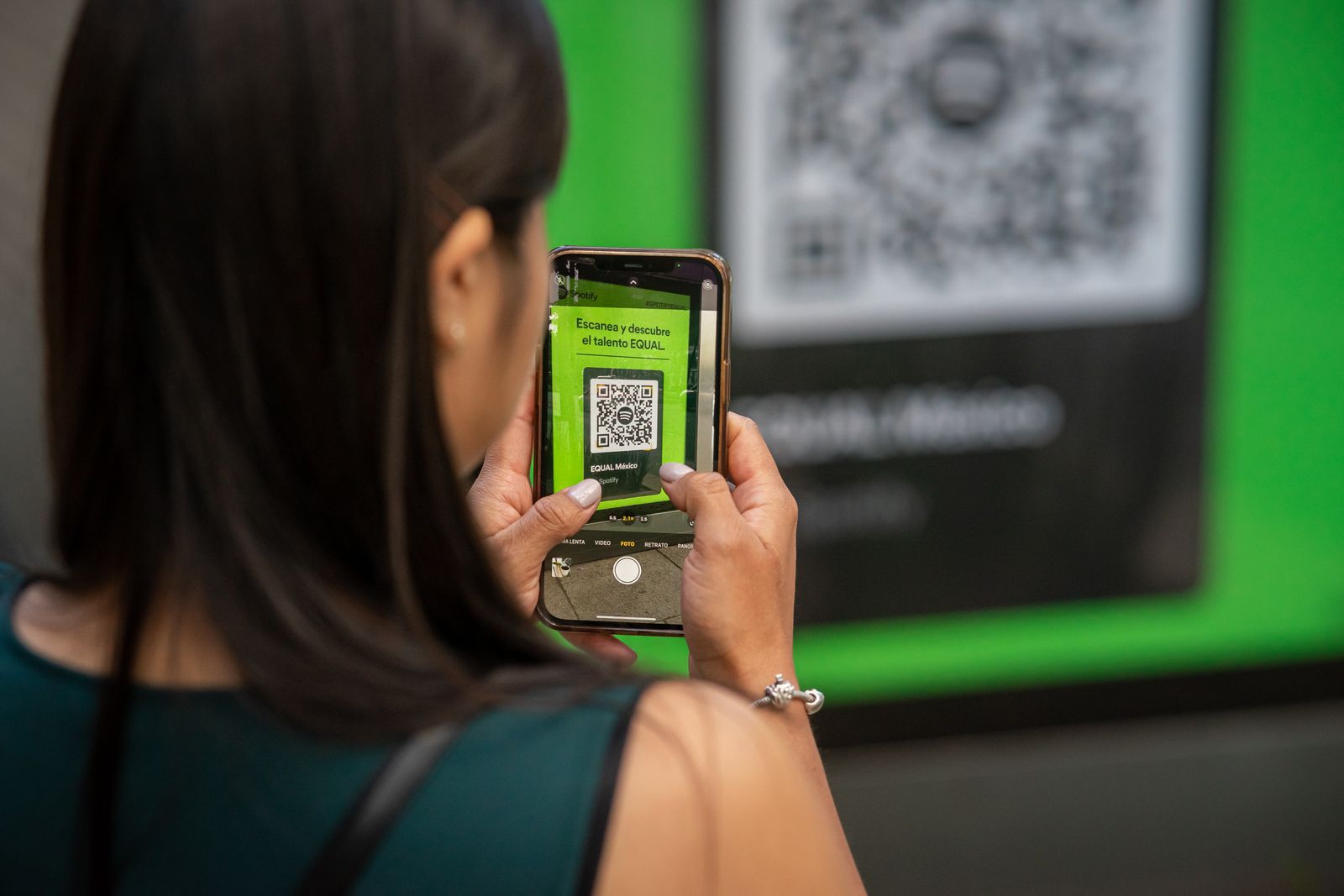
Photo: Julio Lopez / Pexels
Location QR Codes: Scan and Create Checklist
Check off each step as you finish it. Your progress stays on this page.
0 of 6 complete
0% done
Route One: The Camera App (Android and iPhone)
On most modern phones the stock camera already reads QR codes. Open the Camera app, point it at the code, and hold steady for a second or two. A banner or link chip appears over the viewfinder; tap it, and the phone opens the link the code contains. For a location code, that link is a Google Maps link, so the place opens in the Google Maps app when it is installed, showing the pin, the address, and the Directions button, which is the whole point of the exercise. On iPhone this works from the Camera app and from the Control Center code scanner tile. On Android it works in the camera apps of most manufacturers. Two practical notes: you do not take a photo, the camera reads the code live, and you need enough light and a steady hand, because a blurred square is an unreadable square. If nothing appears, move closer so the code fills more of the frame, and wipe the lens; smudged lenses fail more scans than broken codes do.
Route Two: Google Lens
Google Lens is the dedicated reader, and it handles the hard cases: a code in a photo you were sent, a screenshot, a code printed slightly damaged, or a camera app that never reacts. On Android, open the Google app or the Lens app, tap the camera icon, and point at the code; or open the photo in Google Photos, tap Lens, and the code is read from the image itself. On iPhone, Lens lives inside the Google app and Google Photos the same way. Lens shows you the link before opening it, which is a genuine safety feature: you can see that the code points to a maps link and not to a strange domain asking for a login. For codes received in messages, the Photos route is the one to remember, because it turns any saved image into a scannable code without printing anything. If Lens reads the code but the result opens in the browser, the next section explains why and what to tap.
When the Code Opens a Web Page Instead of the App
A scanned location link sometimes lands in the browser's web version of Maps instead of the app. Nothing is broken: the link is a universal web link, and the phone chose the browser. From the web page, tap Open in app if offered, or tap the place name and then the app banner, or simply use the web version, which still gives directions through the app once you tap Directions. The durable fix on Android is to set Google Maps as the default for maps links (Settings, Apps, Google Maps, Open by default, allow the listed links); on iPhone, links generally hand off to the app when it is installed. If the code opens something that is not a map at all, a menu, a Wi-Fi login, a payment page, then the code was never a location code; QR squares are generic containers, and the map is only one of the things they can carry. Read the link before you tap through, exactly as Lens lets you do.
The Reverse: Create a QR Code for a Location
Making a location code is a four step job, and the first three steps are just sharing. In Google Maps, find the place (or drop a pin on the exact spot, which is better for trailheads, gates, and field entrances with no address). Tap Share, then Copy link: you now hold the canonical maps link for that point. Next, paste the link into any reputable QR code generator (search for one, choose a free static code, and avoid generators that wrap your link in their own redirect or demand an account for a basic code). Download the code as a PNG or SVG, with SVG preferred for print because it scales without blurring. Finally, test the printed code with both an Android and an iPhone before the sign is laminated or the invitations are mailed: scan from the distance a visitor will stand, in the light the sign will live in. A code that scans at arm's length on your desk may fail at two meters on a gate. Leave a quiet zone of white space around the square when you place it, and print it at least 2 to 3 centimeters wide for close scanning, larger for distance. Our how to drop a pin on google maps guide covers placing the pin precisely, and how to share your location covers the live sharing alternative for people rather than places.
Pins Beat Addresses for Codes
One judgment call separates good location codes from useless ones: encode a pin, not an address search. An address link resolves through Google's geocoder at scan time, and for rural properties, new buildings, and informal places, that resolution can land on the wrong rooftop or the center of a long road. A dropped pin link encodes the coordinates themselves, so the scanner arrives at your exact gate, booth, or trailhead every time. If the place is a well known business with a verified listing, its place link is equally good and adds photos and hours. The worst choice is a shortened link from a generator's own redirect service, because it adds a middleman that can expire; insist on a code that encodes the maps link directly. This is also why testing matters: you are not testing the square, you are testing the destination the square resolves to.
Troubleshooting: The Code Will Not Scan
Work this order before blaming the code. Light and glare cause most failures: shade the code, kill the reflection from a laminated sign, and add light in a dark room. Distance is second: too close and the camera cannot focus on the whole square; too far and the modules blur together. Start at 15 to 25 centimeters and move slowly outward. Damage and design come third: torn corners, faded ink, and designer codes with logos in the middle or colors with weak contrast all reduce readability; the error correction built into QR codes forgives roughly a quarter of the square being damaged, but not much more, and not damage to the three corner squares the camera uses to orient itself. The lens is fourth: wipe it, and if your camera app still ignores the code, switch to Lens, which uses a more patient reader and can also work from a photo of the code taken straight on. Fifth, consider that the code may be fine and the link dead: a code pointing to a moved or expired page scans perfectly and then fails on the web, which is the creator's maintenance problem, not your camera's. If every code in a venue fails, that venue printed one bad master; if only one fails everywhere you try it, the link behind it is the suspect.
Safety and Privacy in One Paragraph
Treat unknown QR codes the way you treat unknown links, because that is what they are. Preview the URL when your scanner offers it, do not enter passwords or payment details on a page a stray code opened, and remember that a code sticker placed over a genuine code is a known trick on parking meters and payment stands in some cities. For codes you create, remember the pin is public to anyone who scans it, so encode the meeting point, not your front door, when the audience is the general public. None of this is a reason to avoid location codes; they are the friendliest way to hand someone a place. It is a reason to scan with your eyes open, which the checklist above turns into a habit.
Related Guides
The closest companions to this guide are the map app guides below. Each one picks up a thread this page starts:
- Google Maps for Boats: What It Can and Cannot Do on the Water: Google Maps has no boat mode, and the reasons are matters of safety, not missing features: it carries no depth soundings, no channel markers or...
- Google Maps Zoom Levels and Scale: What Each Zoom Number Shows on the Ground: Google Maps zoom is a number, usually from 0 to about 21, and each step doubles how much ground detail fits on screen.
- How to Measure Area in Google Maps: Close the Shape, Read the Land: Google Maps can measure the area of a field, a roof, or a plot of land, but only in one place: on a computer, where closing a measured shape turns...
Frequently Asked Questions
Does Google Maps have a built in QR code scanner?
No. Google Maps has no scan feature. Your phone's Camera app or Google Lens reads the code, and the maps link it contains then opens the place in Google Maps. This is by design: scanning lives in the camera layer of the phone, not in the map app.
How do I scan a QR code to open a location in Google Maps?
Open your Camera app, point it at the code, and tap the link banner that appears. The place opens in Google Maps with its pin and Directions button. If your camera does not react, use Google Lens from the Google app, or open the code's photo in Google Photos and tap Lens.
Why did the QR code open Maps in my browser instead of the app?
The code contains a web link, and your phone handed it to the browser. Tap Open in app on the page, or set Google Maps as the default handler for maps links in your app settings on Android. The web version still works and passes directions to the app.
How do I make a QR code for a Google Maps location?
Find the place or drop a pin on the exact spot, tap Share, and copy the link. Paste that link into a QR code generator, download the code (SVG for print), and test the printed result with both Android and iPhone at the real scanning distance before publishing it.
Should my QR code point to an address or a dropped pin?
A dropped pin, in most cases. The pin encodes exact coordinates, so scanners land on your gate or trailhead precisely. An address link is resolved by the geocoder at scan time and can land imprecisely for rural or new places. A verified business place link is the exception: it is exact and adds hours and photos.
Photo credits: Julio Lopez (Pexels); Proxyclick Visitor Management System (Pexels). Photos are served from this site; follow the credit to the library page for the original.