GPS Coordinates App for Android: What to Look For, and the Settings That Matter More
By the Osm4People editorial team
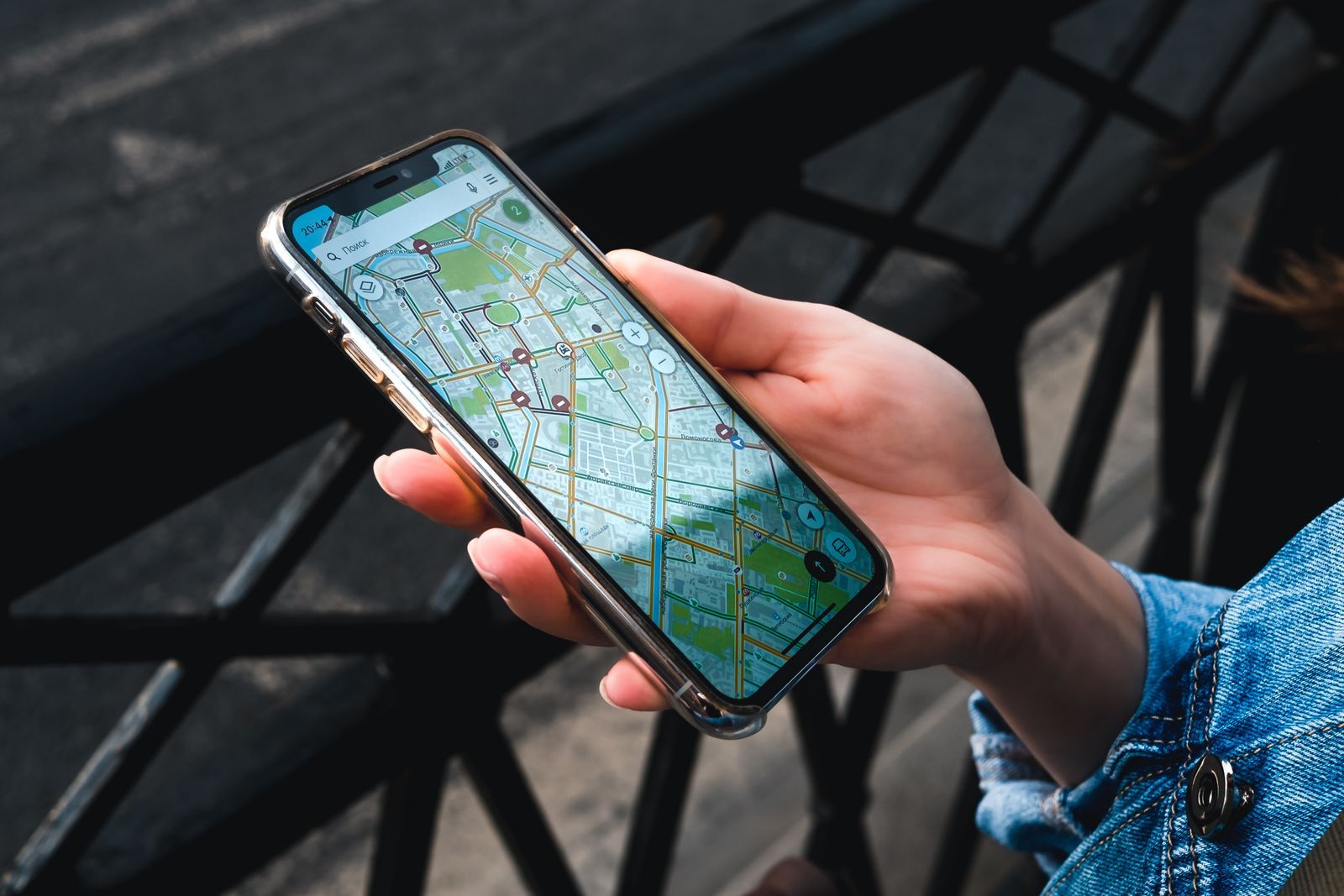
Photo: Stanislav Kondratiev / Pexels
Every Android phone already knows its coordinates to within a few meters. A GPS coordinates app does not create that knowledge; it displays it, formats it, and lets you share it. That reframing makes choosing one much easier, because the questions become practical: does it show the formats you need, does it keep working when the screen locks, and can you send your position to another human in two taps when it matters? This guide walks through what the good apps in the Play Store actually offer, gives you a feature table to judge any listing against, and then covers the part most guides skip entirely: the two Android system settings that decide whether any coordinates app, however good, gets a clean signal or a strangled one.
If you want your coordinates this second with nothing installed, the explorer on this page does the whole job in your browser: your position in decimal degrees, DMS, DDM, and as a plus code, with copy buttons. The app advice below is for when you want that power as a permanent resident of your phone.
Interactive tool
Android Coordinates Setup: Permissions and Battery Checklist
Check off each step as you finish it. Your progress stays on this page.
0 of 7 complete
0% done
What a Good Coordinates App Shows You
Strip away the store screenshots and every serious app in this category shows the same core panel. Judge listings by how completely and clearly they cover it.
Feature
Why it matters
Latitude and longitude in decimal degrees
The universal format; everything else converts from this
DMS and DDM formats
For marine, aviation, hiking GPS, and paper-chart work
Altitude
GPS altitude, useful for hiking and for spotting a bad fix
Accuracy reading in meters
The honesty number: a fix claiming ±4 m can be trusted; ±800 m is a rumor
Satellite count and fix status
Tells you whether the phone is truly listening to the sky or coasting on Wi-Fi
Speed and heading
Free from GPS, and the quickest sanity check that the fix is live
Save and name locations
Turns one-off readings into your own gazetteer
Share via the standard Android share sheet
The emergency feature; must reach WhatsApp, SMS, and email in two taps
Offline behavior
Coordinates need no internet; an app that sulks offline misunderstands its own job
Two red flags while browsing listings: an app that demands an account before showing your own position, and one whose permissions reach for contacts or storage it has no use for. Your coordinates are computed on your phone; a trustworthy app treats them that way.
The Big Names and What They Are For
The Play Store's coordinates shelf holds a few recurring shapes rather than one winner. Simple coordinate viewers do the core panel above and nothing else; they are the right install for most people, free, light, and honest. Hiker-grade apps add track recording, waypoints, and offline maps, overlapping with the trail apps in our best hiking map app guide; choose one of those if recording the walk matters as much as reading the position. Survey and field-work apps add averaging, which sits still and blends many fixes into one steadier coordinate, a professional trick worth having if you are marking boundaries, plantings, or finds. And Google Maps itself is a sleeper candidate: a long-press drops a pin and shows its coordinates at the bottom of the screen, which covers the occasional need with no install at all, as gps coordinates app explains for both phone platforms.
Setting One: Location Mode and Permissions
An app can only display what Android lets it hear. Open Settings, then Location, and confirm location is on. Then open the app's own permission page (Settings, Apps, your coordinates app, Permissions, Location) and grant Allow all the time if you want it to record tracks with the screen off, or Allow only while using the app for a viewer you open deliberately. Within that grant, Android offers a second switch, Use precise location, and it must be on: with it off, Android deliberately fuzzes the app's view to a rough area, and your coordinates app will faithfully display fuzz to six decimal places. Many a user has blamed an app for inaccuracy that was this one switch. While you are in the Location settings, the Wi-Fi and Bluetooth scanning options deserve to stay on too; they feed the assisted fixes that make the first position arrive in seconds instead of a minute.
Setting Two: Battery Optimization, the Silent Strangler
Android's battery system watches apps and puts the idle ones to sleep, and it does not exempt yours. For a coordinates viewer you open and read, sleep is harmless. For anything that records a track, logs waypoints, or shares your live position, an optimized app gets throttled or killed mid-job, and the symptom, a track with a two-hour gap across the middle, looks exactly like a GPS failure. The fix: open Settings, then Apps, then your app, then Battery, and set it to Unrestricted. Yes, it will use more battery; that is the honest price of an app whose entire job is listening continuously. Do this only for the one or two location apps you truly run in the background, and leave the rest of your phone optimized.
Hands wearing bracelets navigate on a smartphone GPS app outdoors
The Emergency Routine: Sharing Your Position From Android
The highest-value use of a coordinates app is the day something goes wrong outdoors. Rehearse this once at home so it is muscle memory.
Open your coordinates app and wait for the accuracy reading to settle to a small number, ideally under 10 m. Step into the open if it will not settle.
Read the format you are about to send: decimal degrees is what rescue services and other phones handle best.
Tap Share and choose the channel that works here: SMS reaches places data does not, and it carries coordinates as plain text perfectly.
Include three things in the message: the coordinates, the accuracy figure, and one sentence of landmarks (the lake's north shore, below the red cliff). Numbers plus a human sentence is the combination rescuers ask for.
Stay where you are if it is safe to do so. A shared position is a promise; walking away from it spends the rescue's best asset.
Plus codes deserve a mention in this routine: a plus code (see what is a plus code) is a coordinate compressed into a short code that survives being read aloud over a bad phone line, and the explorer on this page shows yours alongside the numbers.
Make It Instant: Widgets, Tiles, and the Lock Screen
The difference between an app you own and an app you use is friction, and Android lets you sand the friction to nearly nothing. Most good coordinates apps offer a home-screen widget that shows your live coordinates without opening anything; put it on the screen you actually look at, and your position becomes as glanceable as the time. Some offer a quick settings tile, one swipe down and one tap from anywhere, which is the fastest route when your hands are cold, gloved, or busy. And check whether your app can pin its reading to a notification: a persistent notification showing the current fix is an old field-work trick, because it survives the app being swiped away and updates as you move. Set up one of these three shortcuts on the day you install the app, not the day you need it. The emergency routine above assumes your coordinates are seconds away; these shortcuts are what make that assumption true.
A smaller setup worth doing in the same sitting: open the app's settings and choose your default format and your default share format separately, if it allows it. Many people read in DMS because their hiking GPS speaks it, but should share in decimal degrees because everyone else's phone speaks that. Apps that separate display from sharing understand the real workflow; apps that do not can still be lived with, but you will convert by hand at the worst moments.
Related Guides
Readers working through this topic usually need its closest companions too. These coordinates guides cover the neighboring ground:
What is the best free GPS coordinates app for Android?
For most people, the best is the simplest viewer that shows the full panel: decimal degrees, DMS and DDM, altitude, accuracy, and satellite status, with a clean share button and no account wall. The listings change constantly, but the feature table in this article is a stable test: any free app covering the whole table without demanding sign-up earns the install.
Can I see my coordinates without installing anything?
Yes, two ways. The explorer on this page shows your position in every format in your browser. Or open Google Maps, long-press your blue dot's location on the map to drop a pin, and read the coordinates at the bottom of the card. Both are exact; an installed app adds convenience, recording, and offline polish rather than accuracy.
Why does my coordinates app show a different position from Google Maps?
If both have a true GPS fix, they should agree to within a few meters, because both read the same receiver. Disagreement usually means one app is showing a stale or assisted fix: check each app's accuracy and satellite readings, step outside, and let both settle. The one showing a big accuracy number is the one guessing.
Why does my app lose the signal or stop recording mid-walk?
Almost always Android's battery optimization putting the app to sleep, not a signal problem. Set the app's battery usage to Unrestricted in Settings, Apps, the app, Battery. Also check that its location permission is Allow all the time if it must record with the screen off.
What format should I send my coordinates in?
Decimal degrees, latitude then longitude, like 40.689167, -74.044444. It is the format every phone, rescue service, and map on Earth accepts without conversion. Add the accuracy figure and a landmark sentence, as the emergency routine in this article describes.
Do coordinates apps work without mobile signal?
Yes, completely, if the app is built correctly. GPS is receive-only and needs no network; the coordinates, altitude, and satellite data are all computed on the phone. What fails without signal is loading map pictures and sharing, and even sharing queues up: an SMS waits for a single bar and then goes.
Photo credits: Stanislav Kondratiev (Pexels); Theo Decker (Pexels). Photos are served from this site; follow the credit to the library page for the original.