Start with the fact that decides everything else: Tesla ships no native Apple CarPlay and no Android Auto on any model it sells. There is no menu to enable, no software update that adds it, and no cable that unlocks it. If you prefer Apple Maps, and many iPhone owners do, for its saved places, its look, or its directions style, you cannot install it on the Tesla screen the way you would in a Ford or a Hyundai. What you can do is build a workflow out of four options that do work. Two of them are official and reliable: sending destinations to the car from your phone, and running Apple Maps on the phone itself with the car acting as its speaker. One is unofficial and fragile: adapters that smuggle CarPlay into the Tesla browser. And one is a change of mindset: letting the Tesla navigation do the electric-vehicle jobs that Apple Maps simply cannot do. This guide walks all four, in the order most drivers end up using them.
How to Use Apple Maps on a Tesla: Every Working Option, Honestly Explained
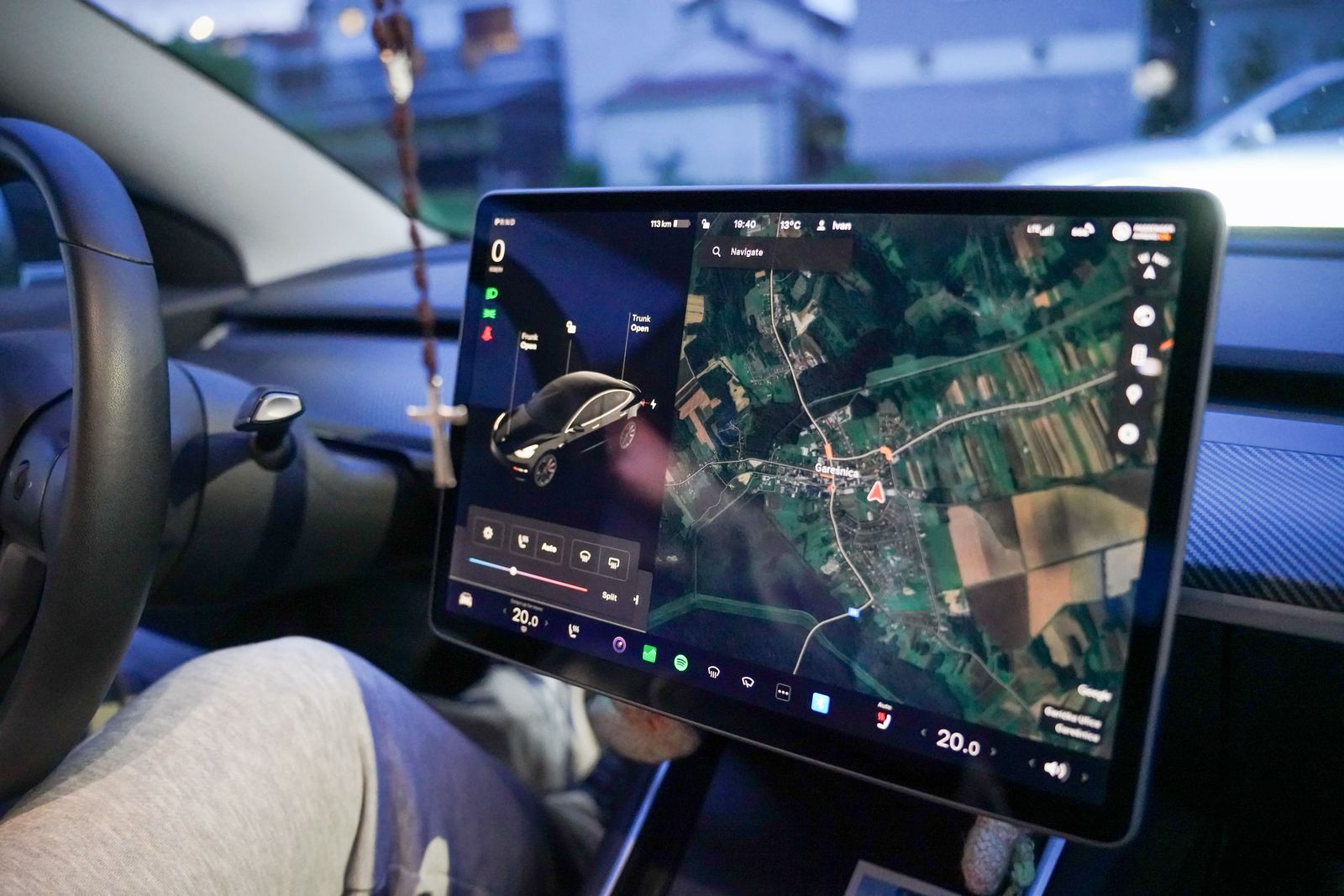
Photo: Vladimir Srajber / Pexels
Apple Maps in a Tesla: The Workarounds Checklist
Check off each step as you finish it. Your progress stays on this page.
0 of 8 complete
0% done
The Short Answer: What Is and Is Not Possible
Apple Maps on the Tesla center screen, running natively, does not exist. Anyone selling you a simple fix for that is selling one of the workarounds below, usually the browser adapter, without saying so. The honest menu is this. First, you can send a destination from Apple Maps on your iPhone straight to the car, where it opens in Tesla's own navigation, ready to drive. Second, you can navigate with Apple Maps on a mounted iPhone and hear every instruction through the car's speakers over Bluetooth. Third, you can buy an adapter that renders CarPlay inside the car's web browser, which puts a real Apple Maps interface on the big screen, at the cost of depending on a workaround Tesla does not support. Fourth, for charging stops and energy planning, you can accept the built-in navigation as the better tool and use Apple Maps everywhere else. Most Tesla owners who love Apple Maps settle on options one and two and never miss the rest.
Option 1: Send the Destination to the Car
This is the workflow Tesla actually designed, and once it is habit it takes seconds. Find your destination in Apple Maps on your iPhone, the restaurant, the address a friend texted you, the pin you dropped last week. Tap the Share button, and choose the Tesla app from the share sheet. The address travels to your car through your Tesla account, and the car navigation picks it up as its next destination. When you get in, the route is either already loaded or waiting as a prompt on the screen. The map that guides you is Tesla's, not Apple's, and that distinction matters for the charging features described below, but the destination, the thing you actually chose in Apple Maps, is exactly where you wanted to go.
The same trick works from almost anywhere on the iPhone, not just Apple Maps. An address in a text message, a location link in an email, a place in another app: if it can be shared, the Tesla app can usually receive it and hand it to the car. It also works in the other direction for planning. In the Tesla app itself you can search for a destination and send it to the car before a trip, which is handy the night before a long drive. Two habits make this option reliable. Keep the Tesla app signed in on your phone, because a signed-out app breaks the share target. And send the destination while you still have good signal, since the handoff needs a data connection on both ends.
When a share seems to vanish, the causes are boring and fixable. If the Tesla app does not appear in the share sheet at all, you are signed out of it or it was never installed; sign in and the target returns. If the share sends but the car shows nothing, the car may be asleep and slow to wake, so give it a minute and check the navigation screen again before sending twice and queueing two destinations. If your account holds more than one car, confirm in the app that you shared to the car you are actually about to drive; sending your morning destination to the other car is a classic two-Tesla mix-up. And if the address arrives but looks subtly wrong, a dropped pin near a large venue, a stadium, a hospital, a campus, zoom in before you set off, because the car will faithfully navigate to the pin it was given, and big sites have many doors.
Option 2: Run Apple Maps on a Mounted iPhone
If you want Apple Maps itself guiding you, with its voice, its lane guidance, and your saved guides and favorites in front of you, the phone has to do the guiding. Mount the iPhone where you can glance at it safely, start the route in Apple Maps, and pair the phone to the car over Bluetooth so spoken directions play through the Tesla speakers. In Apple Maps settings you can set directions to play over Bluetooth and to pause spoken audio, so a podcast or audiobook ducks politely under each instruction instead of competing with it.
Set up this way, the phone is your navigator and the car is its loudspeaker, and for city driving and familiar regions it works beautifully. Know its two limits. The phone screen is smaller than the Tesla display, so a good mount, positioned high and close to your natural line of sight, is not an accessory but the whole system. And the phone is drawing its own power and data the whole trip, so plug it in on long drives. Many drivers run both systems at once on road trips: Apple Maps on the phone for the route they prefer, the Tesla navigation on the big screen underneath for state of charge and charging stops. The two rarely disagree about the road, and when they do, you have learned something about one of them.
Option 3: Browser Adapters That Put CarPlay on the Tesla Screen
The third option is the one from the videos: a small aftermarket device, sold under names such as the Carlinkit T2C, creates its own Wi-Fi network, your iPhone connects to it with CarPlay, and the device serves the CarPlay interface to the Tesla web browser as a local page. Open that page in the car browser and Apple Maps appears on the center screen, touchable and familiar. It genuinely works, and it is genuinely a workaround. Tesla does not support it, document it, or test against it.
Treat it with clear eyes. Because it rides on the car browser and a private hotspot, it adds connection steps at the start of every drive, and any Tesla software update can change browser behavior and break it until the adapter maker ships a fix. Input through a browser page can lag behind a native system, which matters most exactly when you are glancing at a map in moving traffic. And because the arrangement is unofficial, your support channel is the adapter vendor, not Tesla. Drivers who choose this route happily tend to be the ones who wanted CarPlay itself, for Messages, Podcasts, and the whole interface, not just Apple Maps. If all you want is Apple Maps destinations and directions, options one and two give you that with none of the fragility.
What Tesla Navigation Does That Apple Maps Cannot
However you arrange Apple Maps, keep the built-in navigation in the loop for electric driving, because it knows things about your car that no phone app does. Route to a distant destination and the Tesla planner weaves Supercharger stops into the trip, choosing stations and charge durations around your battery. Drive to one of those Superchargers with the car navigation guiding you and the battery preconditions itself on the way, warming to the temperature that accepts the fastest charge, a trick that can save real minutes at the plug and that no external app can trigger. The car also predicts your state of charge at arrival using the actual route, elevation, and your driving, and warns you to slow down or add a stop if the math stops working.
Apple Maps has its own EV routing features in supported cars, but a Tesla is not one of them, so on this car those features stay out of reach. The practical division of labor writes itself: Apple Maps for finding places, saving them, and guiding you in the city and on foot; Tesla navigation for the energy side of long trips. Our general guide to how to use Apple Maps covers the phone side of that partnership in full.
A Combined Workflow That Drivers Actually Keep
Here is the routine that survives contact with daily life. At home or at your desk, find and save places in Apple Maps, where your favorites and guides already live. Before a drive, share the destination to the Tesla app; let the car navigation route you there, especially if the trip needs a charge. In the city, or any time you prefer Apple's guidance and traffic read, run Apple Maps on the mounted phone with Bluetooth audio and let it talk over the speakers. On arrival, the last five minutes are Apple Maps territory anyway, since the walking directions from the parked car to the door are something the car cannot give you. Skip the adapter unless you specifically want the whole CarPlay interface and accept its upkeep. That is the complete, honest answer: not Apple Maps on the Tesla screen, but Apple Maps woven through the Tesla where each tool is strongest.
Related Guides
This guide does not stand alone. The map app guides below take up the questions it leads into:
- How to Use Apple Maps in CarPlay: The Complete First Drive Routine: Apple Maps in CarPlay rewards a ten minute setup done once in the driveway and punishes improvising at highway speed, because the keyboard locks...
- Apple Maps Not Working? A Symptom-First Fix Ladder for iPhone: Most fix lists for Apple Maps throw every toggle at every problem in random order.
- How to Measure Distance on a Map App: Straight Line, Road, and Walking Numbers Explained: Ask a map app "how far is it" and you can get three different numbers for the same two places: the straight line measure, the driving route...
Frequently Asked Questions
Does any Tesla model have Apple CarPlay?
No. As of this writing, Tesla offers no native CarPlay or Android Auto on any model, and it has announced none. Apple Maps reaches the car only through the workarounds in this guide: sending destinations to the Tesla navigation, running Apple Maps on your phone, or using an unofficial browser adapter.
Can I mirror my iPhone screen to the Tesla display?
Not natively. The Tesla screen does not accept AirPlay or a mirrored phone display. The browser adapters described above do not mirror your phone either; they render a CarPlay session inside the car web browser, which is why they depend on the browser continuing to behave the same way after software updates.
I shared an address to the car. Why did it open in Tesla navigation instead of Apple Maps?
That is the design. The share sends the destination, not the app. Your car receives the address through your Tesla account and routes to it with its own navigation, which is what lets it add Supercharger stops and precondition the battery on the way. The place you picked in Apple Maps is preserved exactly; the guide voice is the car's.
Are CarPlay browser adapters safe to use?
They are unofficial and unsupported by Tesla, so the honest cautions are practical ones: they can stop working after a Tesla software update, they add setup steps and some input lag, and support comes from the adapter maker. Whether any modification affects your warranty is a question only Tesla can answer for your car, so read its terms before relying on one.
What is the simplest setup if I only care about directions?
Send destinations from Apple Maps to the car for long trips, so charging is handled, and run Apple Maps on a mounted iPhone with Bluetooth audio for everyday city driving. That pairing covers nearly every trip with no extra hardware, and it is the combination most iPhone owning Tesla drivers settle into.
Photo credits: Vladimir Srajber (Pexels); Hassan OUAJBIR (Pexels). Photos are served from this site; follow the credit to the library page for the original.