CarPlay turns Apple Maps into the best version of itself: a big calm screen, directions in the dashboard beside your music, and Siri doing the typing. But the first drive with it confuses almost everyone, because the system splits its controls between the iPhone and the car screen, locks the keyboard while the car moves, and hides its best tricks behind voice commands nobody told you. This guide is the routine that fixes that: one driveway setup, then the handful of moves that cover nearly every real drive.
How to Use Apple Maps in CarPlay: The Complete First Drive Routine
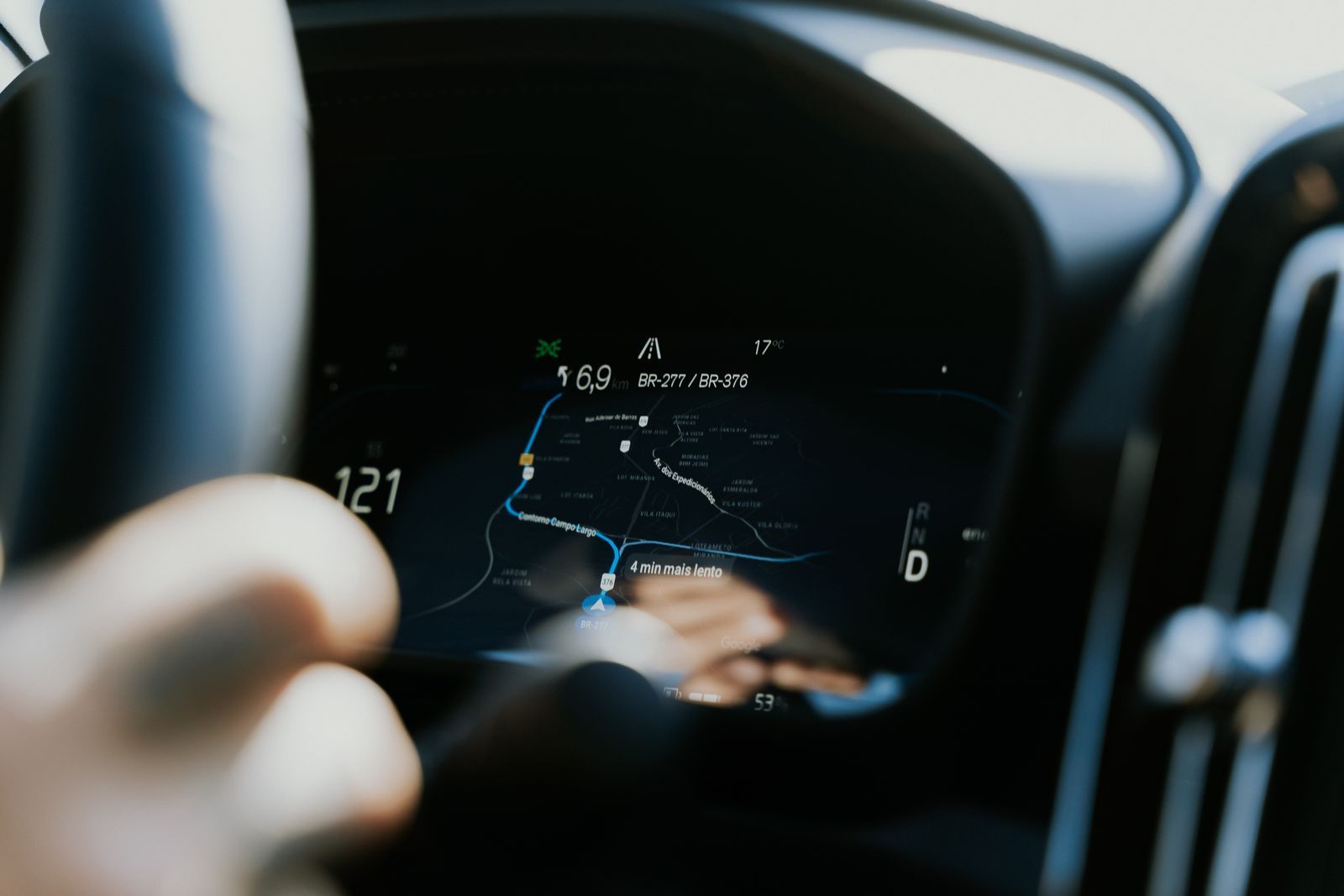
Photo: Daniel Andraski / Pexels
Interactive tool
CarPlay First Drive: The Driveway Setup
Check off each step as you finish it. Your progress stays on this page.
0 of 7 complete
0% done
Step One: Connect, Wired or Wireless
Wired CarPlay. Plug the iPhone into the car's CarPlay USB port with a good cable. Cheap cables are the number one cause of flaky CarPlay; if the connection drops over bumps, replace the cable before you blame anything else. The first connection asks permission on the phone; allow it, and the car remembers the phone afterward.
Wireless CarPlay. Available on cars and head units that support it. The first pairing happens over Bluetooth through the car's setup menu, then the connection switches to Wi-Fi for the data. After that first pairing, CarPlay starts on its own when you start the car. If your car offers both, wired is the more reliable and charges the phone; wireless is the more convenient and drains it, so keep a cable in the car either way.
If CarPlay does not appear. On the iPhone, check Settings, then General, then CarPlay, and confirm your car is listed and enabled. Check that Siri is turned on, since CarPlay requires it. Restarting the phone and the head unit, in that order, resolves most ghosts. Our Apple Maps not working guide covers the app side failures that can follow you into the car.
Step Two: Learn the Two Screens
CarPlay gives you two views, and knowing which is which ends most confusion.
The Dashboard is the split view: a map card on one side, now playing and next turn cards on the other. It appears when you tap the grid icon in the corner or swipe to it. Apple Maps is the only navigation app that lives in the Dashboard view; Google Maps and Waze open as full screen apps instead. Many drivers run the whole trip in Dashboard and never need the second view.
The full Maps view is the app itself on the car screen: search, favorites, route overview, and settings for the drive. You set up routes here while parked, glance at the overview here at stops, and otherwise live in the Dashboard.
Step Three: Start a Route Without Typing
The on screen keyboard locks while the car is moving, by design, so voice is not a convenience in CarPlay; it is the interface. These Siri commands cover real driving:
- "Directions to" followed by an address, a business, or a contact's name.
- "Take me home" or "directions to work," once home and work are saved in Maps on the phone.
- "Add a stop" during a route, then name the place; Apple Maps inserts it into the current trip.
- "Share my ETA" during a route, then name the contact; they receive your arrival time in Messages and it updates as traffic changes.
- "Report an incident" during a route, then say accident, hazard, or speed check.
- "What's my ETA" at any point in a route.
Set up the driveway half of this system once: in Apple Maps on the iPhone, save home and work, and star your frequent places as favorites. Every one of them becomes a one tap or one sentence destination in the car. This is also where the settings split matters. Guidance volume, toll and highway avoidance defaults, and your saved places live in the iPhone's Maps settings. The car screen offers only the drive time controls: mute or unmute guidance, route overview, end route. If a setting seems missing in the car, it is on the phone, by design, so you change it while parked.
Step Four: The Drive Itself
Start the route before you roll, even for a familiar first leg, because the route is what unlocks ETA sharing, incident reports, and rerouting around the crash you cannot see yet. During the drive, Apple Maps shows the speed limit on roads where it has the data, announces turns with natural references to lights and landmarks, and reroutes automatically when traffic sours. A tap on the route card shows the overview and alternate routes with their time differences. To end early, tap End, or just arrive; CarPlay notices.
One behavior surprises new users: there is no setting to make a different navigation app the permanent default for Siri or for addresses sent to the car. Siri directions always start in Apple Maps. You can open Google Maps or Waze from the CarPlay home screen and navigate there manually, and many drivers do exactly that for Waze alerts, but the system's own voice and link plumbing belongs to Apple Maps. Plan around it rather than fighting it.
Offline Maps in CarPlay
Downloaded areas on the iPhone work in CarPlay exactly as they do on the phone. A route through a coverage dead zone keeps guiding, with driving, walking, cycling, and transit directions available from the download on iOS 17 and later. The driveway rule stands: download your trip corridor on Wi-Fi before any rural drive, because the car cannot download it for you at the trailhead. Our best offline map app for walking directions guide covers what each app keeps working when the signal dies, and how to use Apple Maps covers the phone side skills that feed the car.
Troubleshooting the Usual Suspects
Directions go to the phone speaker instead of the car. Check the car's audio source is set to CarPlay or Bluetooth audio, and in the iPhone's Maps settings confirm guidance is set to play over Bluetooth.
The map lags behind the car. The car's GPS, when the car provides one to CarPlay, is usually better than the phone's in a pocket or console. A phone buried under metal in a center console can lag; moving it to a dash mount fixes most cases.
CarPlay disconnects on bumps. Cable, almost every time. Swap it.
Siri cannot find a contact's address. The contact card needs a labeled home or work address saved in Contacts on the phone. Add it once, parked.
Do the driveway setup in the checklist above once, and CarPlay stops being a system you operate and becomes what it was meant to be: directions that are simply there, at the size of a dashboard, with your hands where they belong.
The Sixty Second Reset Ladder
When CarPlay misbehaves mid trip, resist the urge to factory reset anything at a rest stop. Work this ladder in order, because each step fixes most of what remains. First, reseat the cable or toggle the connection: unplug and replug, slowly, and watch for the CarPlay icon to return. Second, check the phone is unlocked once after starting the car; some setups withhold CarPlay until the first unlock. Third, confirm the car itself is selected under Settings, General, CarPlay on the iPhone, and that the toggle for it is on. Fourth, restart the iPhone; it sounds glib and resolves a remarkable share of ghosts, because CarPlay is a phone process wearing a car costume. Fifth, restart the head unit, which on most cars means holding its power or volume knob for ten seconds, or turning the car fully off and opening the door so its electronics sleep. Only after all five should you forget the car in settings and pair again from zero, and if the problem survives even that, try a different cable and a different phone, which divides the world into car faults and phone faults in one experiment.

Passengers, Second Phones, and Rental Cars
Three situations round out real CarPlay life. Passengers can add stops and search from the phone itself while you drive, since the keyboard lock applies to the car screen, not to a passenger holding an unlocked iPhone; the route updates in the car as they work. Handing the driver role to the passenger's phone is cleaner still on long trips: connect their phone, and their favorites and home become the trip's brain. Second phones are remembered individually by most cars, and the car usually reconnects to the last used device; if the wrong phone keeps winning, the car's own device list, in its settings, is where priority is settled, not the iPhone. Rental cars deserve one habit: when you return the car, remove your phone from its CarPlay device list and remove the car from your iPhone's list under Settings, General, CarPlay. Your home address, contacts, and recent destinations travel with the pairing, and the next renter does not need them. Thirty seconds at the return lot is the whole cost of not leaving your geography in a stranger's dashboard.
Related Guides
If this page answered part of the question, these map app guides cover the rest of the same ground:
- How to Use Apple Maps on a Tesla: Every Working Option, Honestly Explained: Tesla does not offer Apple CarPlay on any model, so Apple Maps cannot run natively on the Tesla screen, and no setting changes that.
- Apple Maps Street View: How to Use Look Around and Check If Your City Has It: Apple's answer to Street View is called Look Around, and it hides behind a binoculars icon that many iPhone owners have never tapped.
- Apple Maps for Business: Claim and Manage Your Listing in Apple Business: Your business already has a place card on Apple Maps, and Apple Business, the free owner portal that replaced Apple Business Connect in 2026, is...
Frequently Asked Questions
Does Apple Maps in CarPlay work without an iPhone connection?
No. CarPlay is the iPhone projected onto the car screen; the phone runs Apple Maps and the car displays it. Downloaded offline areas on the phone keep navigation working without a cellular signal, but the phone itself must be present and connected, wired or wirelessly.
Can I use Google Maps or Waze in CarPlay instead?
Yes, both appear as apps on the CarPlay home screen and navigate full screen. Two limits apply: only Apple Maps appears in the split Dashboard view, and Siri or address links always start routes in Apple Maps, since iOS offers no default navigation app setting. Many drivers run Waze for alerts and Apple Maps for everything else.
Why is the keyboard locked while I drive?
Deliberately, for safety. CarPlay disables text entry in navigation while the car is moving, expecting you to use Siri voice commands instead: "directions to," "add a stop," "share my ETA." A passenger cannot unlock it from the car screen either; route changes while moving are a voice task or a stop the car task.
How do I share my arrival time from CarPlay?
During an active route, say "Share my ETA" to Siri and name a contact, or tap the ETA card on the car screen and choose the contact. They receive a Messages notification with your live arrival estimate, which updates if traffic changes your arrival. Stop sharing from the same card or by ending the route.
Why do some settings not appear on the car screen?
Because CarPlay splits control on purpose. Drive time controls, mute, overview, end route, live on the car screen. Setup, saved places, guidance volume, and route preference defaults, lives in Apple Maps settings on the iPhone, where you can only reach them while parked. If a setting seems missing in the car, look on the phone.
Does CarPlay use the car's GPS or the phone's?
When the car provides location to CarPlay, Apple Maps uses it, and a car's roof antenna usually outperforms a phone in a pocket or console. If your position lags or jumps in the car, try moving the phone out of enclosed storage first; persistent problems in the car often mirror the phone side causes in our location accuracy guides.
Photo credits: Daniel Andraski (Pexels); Daniel Andraski (Pexels). Photos are served from this site; follow the credit to the library page for the original.