Search for how to hide labels in Google Maps and the answers talk past each other, because the question hides three different wishes. One reader wants the clean satellite view from screenshots, a map with no names on it. Another wants their own private labels gone. A third is drowning in pins from a saved list and wants the map back. Google built a mechanism for each wish, in three different places, with three different logics, and one of them does not exist on the phone at all. This guide takes the wishes one at a time.
How to Hide Labels in Google Maps: The Clean Map, Desktop and Phone
Photo: Uday Veeru / Pexels
Interactive tool
A Quieter Map: The Hide Labels Checklist
Check off each step as you finish it. Your progress stays on this page.
0 of 7 complete
0% done
Wish One: Hide the Public Labels (Desktop Only)
The map's own labels, the city names, road names, and business names printed across the terrain, come off in exactly one place in Google Maps:
- On a computer, open Google Maps and switch to Satellite view.
- Open Layers, then More.
- Uncheck Labels.
The map redraws as pure imagery: fields, rooftops, rivers, and roads with nothing written on them. Three properties of this switch define it, and each one frustrates somebody daily. It exists only in Satellite view: switch back to the default map and the Labels checkbox greys out, because the default style treats its labels as part of the drawing rather than a layer on top of it. It exists only on desktop: the phone app documents no equivalent switch, and any guide promising one is selling a workaround as a feature. And it does not persist: reload the page or return tomorrow and the labels are back, because the setting is a view choice, not a preference.
Workarounds for the phone exist in the honest sense that other products do the job: Google Earth, covered below, and third-party map apps with label-free styles. Within Google Maps on a phone, the answer is no, and knowing it is no saves the twenty minutes of menu archaeology most people spend discovering it.
Wish Two: Remove Your Own Private Labels
Your private labels, the names you attached to places with the system our labeling guide teaches, are not hidden. They are removed, one at a time, and the removal is permanent:
- On the phone: open You, then Labeled, tap the label, and remove it from its entry.
- On desktop: open Saved, then Labeled, and delete the label from the list.
There is no "hide all my labels but keep them" mode, and the design is defensible once you see it: a label is a name you gave a place so you could find it, so a hidden label is a contradiction the product declined to build. What you can do is curate. The Labeled list is short for most people, and a seasonal pass, deleting the apartments of moved friends and the offices of finished jobs, keeps the names on your map limited to the ones that still earn their place. Note the boundary with Home and Work: those two are managed in their own settings, and the home address guide covers changing or removing them.
Wish Three: Hide a Saved List's Markers
The third wish wears the same words and means something else entirely: your saved places, the stars and hearts and list pins, are covering the map. These are not labels in Google's vocabulary; they are markers from your lists, and they hide per list:
- Open Saved and find the list whose markers you want off the map.
- Open the list's menu and choose Hide on your map.
The places stay saved, the list stays intact, and its pins leave the map until you choose Show on your map to bring them back. This is the switch trip planners actually need: the research list with sixty candidate restaurants hides during the trip itself, when only the chosen few, perhaps in a second, smaller list, deserve pins. The full saved places guide covers the list system that this switch belongs to.
The Fourth Surface: Google Earth's Clean View
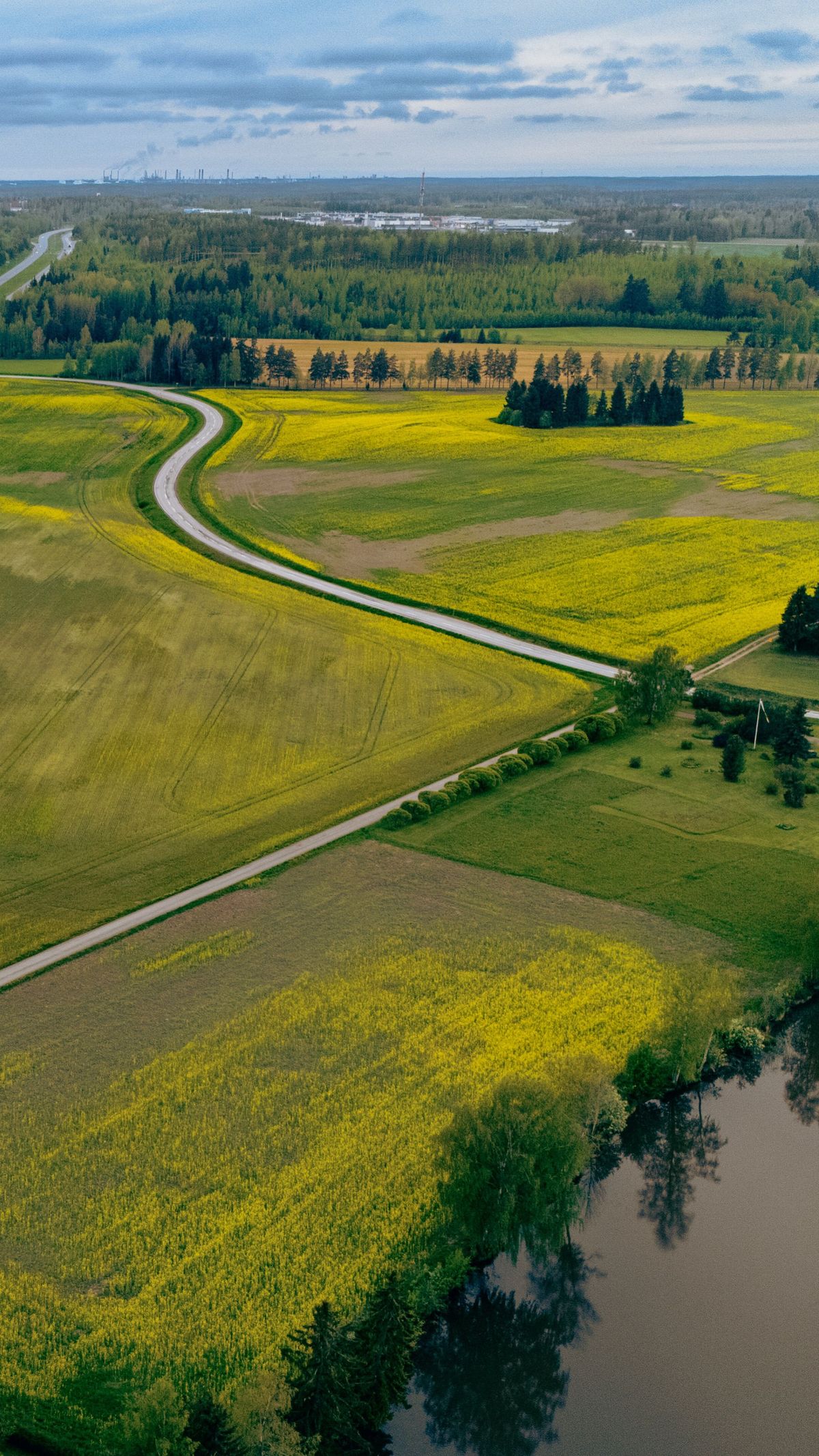
When the wish is really "show me the terrain with nothing written on it," the product built for it is Google Earth, not Maps. Earth's view options include a clean presentation that strips borders, labels, and roads for an unobstructed look at the imagery, the view that produces those label-free screenshots people then try to reproduce in Maps. Our aerial view guide untangles the four above-the-ground views across the two products, and it is the honest detour for anyone whose real project is imagery: presentations, property research, or just the pleasure of the planet without its captions. The division of labor is stable: Maps is the tool for going places, Earth is the tool for looking at them, and the label switch lives on the looking side.
Why the Satellite Trick Works, Briefly
The desktop behavior stops seeming arbitrary once the rendering is clear. The default map is a single drawn style: its labels are painted into the tiles as part of the cartography, so there is nothing separable to switch off, hence the greyed checkbox. The satellite view is photography with an annotation layer laid over it, and a layer can be lifted. That is also why the trick survives every redesign of the Layers panel: it is not a feature bolted on, it is a consequence of how the two views are built. Knowing this predicts the edge cases correctly: labels return on reload because view state is session state, and no account setting will ever hold them off, because the preference would have to survive in a product that treats the labeled map as the canonical one.
The Screenshots You Have Seen, Explained
It helps to name where the wish usually comes from. The label-free map circulates as a genre: real estate listings showing a clean aerial of a plot, news graphics with unannotated satellite views, social posts of coastlines and field patterns as pure texture. Nearly all of them were made one of three ways: the desktop Satellite and Layers route in this guide, Google Earth's clean view, or a specialist GIS tool. Knowing the three sources ends the most common wild goose chase, in which a phone user hunts the Maps app for a switch that produced an image made on a desktop or in Earth. Tools leave fingerprints; a label-free Google-style image is a desktop or Earth fingerprint, and reproducing it means going where it was made.
Labels You Cannot Remove, and Why
A boundary of the system deserves plain statement. Some things that look like labels are not labels in any sense this guide can switch. The business names in the default map style are part of the drawn cartography, which is why the desktop trick needs Satellite view, where names ride as a layer instead. Promoted pins and ads are a commercial layer with their own controls in the ad settings of your account, not a map label setting. And other people's contributions, the photos, reviews, and edits attached to a place, belong to the place's public record: your levers over them are reporting and your own contributions, not hiding. The map has several authors, Google, businesses, contributors, advertisers, and you, and each kind of writing on it answers to a different authority. This guide's three wishes are the three that answer to you.
What Hiding Labels Is Actually For
The clean map is not a cosmetic preference; it has real jobs. Property and land research reads boundaries, tree lines, and water without names arguing for attention. Route study in satellite view, tracing whether a road connects or a trail crosses, goes faster on unannotated imagery. Presentations and screenshots borrow the clean view whenever the map is evidence rather than directions. And there is a quieter use: learning a landscape. Reading terrain with its names removed forces the eye onto shape and pattern, the skill every map reader eventually wants, and the labeled view waits one checkbox away when the lesson ends.
Troubleshooting
The Labels checkbox is greyed out. You are in the default map view. Switch to Satellite first; the checkbox only lives there.
Labels came back after I hid them. They always do. The setting resets on reload and does not sync anywhere. Repeating the three clicks is the whole maintenance cost.
I hid a list but its pins still show. Check whether the pins belong to a different list, or to the built-in categories like Favorites, which are lists of their own and hide separately.
My own label still shows after removal. Give it a sync cycle and confirm you removed it from the Labeled list of the account you are signed into. Labels are per account, and the work and personal pair strikes again.
I want labels off on my phone. There is no switch in the phone app. Use Google Earth for the clean view, or a third-party map app whose style omits labels, and treat any guide claiming otherwise as mistaken.
Related Guides
If this page answered part of the question, these map app guides cover the rest of the same ground:
- How to Label Places in Google Maps: Private Names That Stay Yours: The creation side of the system: adding and managing the private labels this guide removes.
- Google Maps Saved Places: Favorites, Want to Go, Starred, and Your Own Lists: The list system whose Hide on your map switch clears the third kind of clutter.
- Google Maps Aerial View: The Four Above-the-Ground Views, Untangled: Satellite, Earth, and the other overhead views, including where the truly clean view lives.
- How to Search Nearby in Google Maps: Find Places Around Any Point: Once the map is clean, putting it back to work: finding places around any anchor.
Frequently Asked Questions
How do I turn off labels in Google Maps?
On a computer, switch to Satellite view, open Layers, then More, and uncheck Labels. The labels lift off the imagery. The setting lasts for the session and resets when the page reloads.
Why is the Labels option greyed out?
Because you are in the default map view, where labels are painted into the map style itself and cannot be separated. The checkbox activates only in Satellite view, where labels are an overlay on photography.
Can I hide labels in the Google Maps phone app?
No. The phone app has no public label switch. For a label-free view on a phone, use Google Earth, which offers a clean presentation, or a third-party map app with a label-free style.
How do I remove a label I created?
Open You, then Labeled on the phone, or Saved, then Labeled on desktop, and delete the label from the list. Private labels are removed rather than hidden, and the removal affects only your account.
How do I stop my saved places from covering the map?
Open Saved, choose the list, and select Hide on your map from its menu. The places remain saved; only their markers leave the map, and Show on your map brings them back whenever you want them.
Photo credits: Uday Veeru (Pexels); Tomas Stenstrom (Pexels). Photos are served from this site; follow the credit to the library page for the original.