Google Maps Update: What Changed, and How to Get the New Version
By the Osm4People editorial team
Photo: Tima Miroshnichenko / Pexels
When people search for a Google Maps update, they usually mean one of two things. Either they heard that Google Maps changed, with new features in the news, and they want to know what is different. Or their app is behaving oddly, or looks old, and they want the newest version on their phone right now. This article handles both, in that order: first what the latest update actually brought, then the exact steps to update the app on Android and iPhone, then how to check which version you are running, and finally the rollout system that explains why updates arrive on different phones on different weeks.
One promise before we start: nothing here requires technical skill. Updating an app is a two minute job once you know which buttons to press, and every step below is written for the screens you will actually see.
Interactive map
Coordinate Explorer
Click anywhere on the map and read the exact coordinates of that spot in every format. Drag the map, zoom in, and click again to explore.
Decimal degrees40.689167, -74.044444
Latitude40.689167° N
Longitude74.044444° W
Degrees minutes seconds40° 41' 21.00" N, 74° 02' 40.00" W
Degrees decimal minutes40° 41.350' N, 74° 02.667' W
The headline change in the most recent round of updates is a smarter assistant inside Maps called Ask Maps. Instead of typing a bare place name and scrolling through pins, you can ask a full question in ordinary language, the way you would ask a person: a coffee place with outdoor seating near the park that is open now, or a quiet hotel within walking distance of the station. Ask Maps reads the map data, reviews, and hours behind the scenes and answers with a short list that fits the whole request, not just one keyword of it.
Two abilities inside that update deserve plain explanations, because the headlines compress them into jargon.
Trip itineraries. Ask Maps can now sketch a whole trip, not just a single route. Ask for a day in a city and it will chain places together in a sensible order, with the travel legs between them, instead of leaving you to hop between five separate searches. It is a planner sitting on top of the map rather than a new map.
Appointment calling. For some businesses, Maps can now help you book or check an appointment from the listing itself, guiding you through the call or form the business uses. Availability varies a lot by business and by country, so treat it as a bonus when it appears on a listing rather than a feature every place supports.
Alongside those, Ask Maps has been expanding country by country: the November 2026 round added around 30 more European countries, taking the total past 200 countries and territories where some form of the assistant is available. That phrasing matters. Past 200 does not mean identical everywhere; language support and individual features still differ by region, which is the first clue to the rollout puzzle explained below.
Earlier in 2026, Maps also rolled out Immersive Navigation, a richer 3D style driving view that shows buildings, lanes, and landmarks in more detail as you approach complicated junctions. If your driving screen suddenly looks more like a video game rendering of the street, that is this feature arriving, not a fault.
How to Update Google Maps on Android
Android phones get Maps updates through the Play Store. Here is the full routine.
Open the Play Store app.
Tap your profile picture or initial in the top right corner.
Tap Manage apps and device.
Under Updates available, tap See details. If Google Maps appears in the list, tap Update next to it.
If Maps is not listed, you are already on the newest version the store is offering your phone. You can confirm by searching for Google Maps in the Play Store: an Open button means up to date, an Update button means one is waiting.
If you want updates to handle themselves from now on, turn on auto-update for Maps alone: open the Google Maps page in the Play Store, tap the three dots in the top right, and tick Enable auto update. The app will then refresh itself in the background, usually overnight on Wi-Fi.
How to Update Google Maps on iPhone
On iPhone, Maps updates come through the App Store.
Open the App Store app.
Tap your profile picture or initial at the top right.
Scroll down to the list of pending updates. If Google Maps is there, tap Update beside it. You can also tap Update All to refresh everything at once.
If Google Maps is missing from the list, pull down on the screen to refresh the list once; the App Store sometimes needs that nudge. Still missing means you are current.
For automatic updates across all apps, open Settings, then App Store, and switch on App Updates. There is no per-app auto-update switch on iPhone the way Android offers; it is all apps or manual.
How to Check Which Version You Are Running
Knowing your version settles arguments about whether a missing feature is your phone's fault. Inside Google Maps, tap your profile picture or initial, then Settings, then scroll to the very bottom and tap About, terms and privacy. The version number sits on that screen, a long string like 25.x. You rarely need the whole string; what matters is comparing it with a friend's phone, or checking it again after an update to confirm the number moved.
A practical habit: if a news story says a feature needs the latest version, update first, then check the version screen, then go looking for the feature. Skipping the middle step leaves you unsure whether the update actually installed.
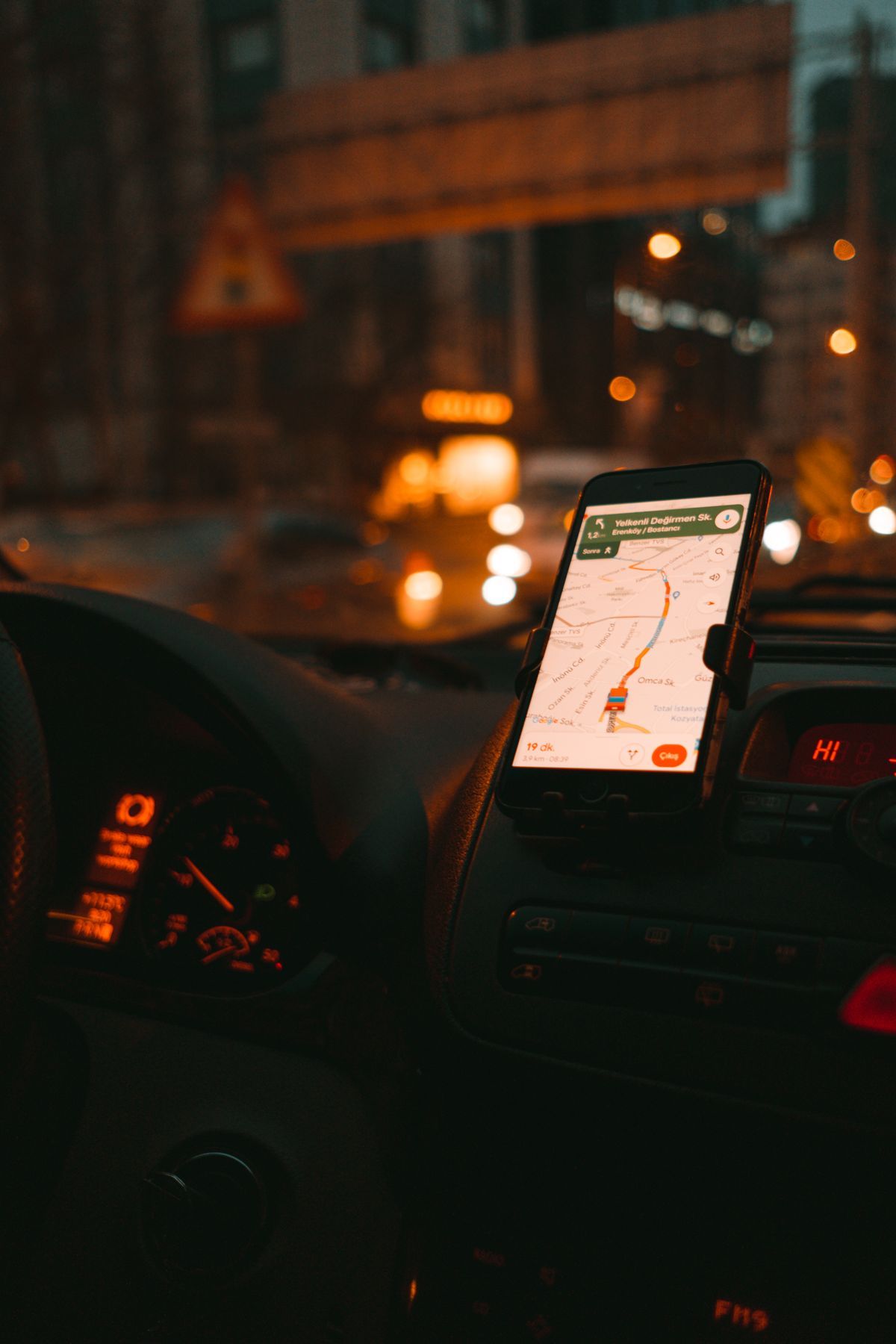
A smartphone shows GPS navigation on city streets at night from inside a car
Why Your Friend Has the Feature and You Do Not
This is the part of updating that frustrates everyone, so here it is plainly: Google releases Maps features in stages, and the app version is only one of three gates.
Gate
What it means
What you can do
App version
Your installed Maps is older than the feature needs
Update in the Play Store or App Store
Server rollout
Google has switched the feature on for a percentage of accounts, region by region
Nothing but wait; it arrives on its own, usually within weeks
Account and region
The feature is limited to certain countries, languages, or signed-in states
Check you are signed in; some features never reach some regions
The staged rollout is deliberate. Google turns a feature on for a small slice of users, watches for crashes and wrong answers, fixes what it finds, then widens the slice. Ask Maps expanding through Europe country by country is exactly this pattern at the level of whole nations. The practical consequences: reinstalling the app does not jump the queue, joining a beta program sometimes does but trades stability for earliness, and the honest answer to when will I get it is usually within a few weeks of the announcement, with no date anyone can promise you.
There is one real action worth taking: make sure you are signed in to Maps with your Google account and that the app is updated, because staged rollouts typically target updated, signed-in apps first. Then use the app normally. Features switched on server-side simply appear one day, often announced by a small card inside the app.
If the Update Breaks Something
Occasionally an update arrives with a bug: the map freezes, the voice stops, the blue dot wanders. Before blaming the update permanently, run the standard three-step reset. First, fully close and reopen the app. Second, restart the phone, which clears more than people expect. Third, on Android, open Settings, then Apps, then Google Maps, then Storage, and tap Clear cache (cache only, not data, so your saved places survive). On iPhone, deleting and reinstalling the app is the equivalent deep clean, and your saved places return when you sign back in because they live in your account, not the app. If the problem began with the newest version and survives all three steps, it is likely a genuine bug in that release; Google ships fixes for these quickly, so keep auto-update on and give it a few days.
If your complaint is not a bug but a behavior, the wandering blue dot especially, that is a positioning problem rather than an update problem, and our guide to why is my location not accurate works through its causes and fixes.
Five Settings Worth Reviewing After a Big Update
Major updates occasionally reset a preference or introduce a new one switched on by default. After any update that changes how the app looks, spend two minutes in Settings (profile picture, then Settings) checking these five.
Offline maps auto-update. Under Offline maps settings, confirm your downloaded areas still refresh automatically on Wi-Fi. An expired offline map is worse than none, because it fails silently exactly where you have no signal to fix it.
Navigation voice and volume. Updates have been known to return the guidance voice to the default. Open Navigation settings, check Voice selection, and set Guidance volume to Normal or Louder if road noise swallows instructions in your car.
Notifications. A big update can bring new notification categories, such as prompts about places you visited or new feature announcements. Turn off the ones you do not want now, while you are looking at the list, rather than muting them one interruption at a time for a month.
Location accuracy. Confirm Maps still has precise location permission. On Android this lives in the phone's Settings, Apps, Google Maps, Permissions, Location, set to Allow all the time or Allow only while using the app, with Use precise location switched on. On iPhone it is Settings, Privacy and Security, Location Services, Google Maps, with Precise Location on. An update never removes this permission, but a phone system update sometimes tightens it, and the symptom, a wandering dot, gets blamed on Maps.
Your saved data. Open your lists and confirm your saved places and home address are intact. They live in your account and survive updates, so if anything is missing, the real story is that you are signed in to a different Google account than the one you saved them under, a common mix-up on phones with both a personal and a work account.
How to Update on a Computer (and Why You Mostly Should Not Bother)
People occasionally ask how to update Google Maps on a laptop or desktop. The honest answer is that there is nothing to update: Google Maps in a web browser is served fresh from Google's servers every time you load the page, so the browser version is always the current one by definition. If the web version looks stale or behaves strangely, the fix is a hard refresh of the page (Ctrl and F5 on Windows, Command and Shift and R on a Mac) or clearing the browser's cache for maps.google.com, which forces it to fetch the newest code. The app update question only truly exists on phones and tablets, which is why the steps above live there. One genuine desktop note: if you use the Google Maps app from the Microsoft Store or a Chromebook, it updates through that store exactly like the phone versions, using the same Manage apps routine.
Related Guides
Readers working through this topic usually need its closest companions too. These map app guides cover the neighboring ground:
Continuously. Road changes, closures, and business edits flow in from official sources, business owners, and user reports every day, separate from app updates. The app version on your phone and the freshness of the map underneath it are two different things, and the map refreshes itself from Google's servers whenever you are online.
Do I have to pay for Google Maps updates?
No. Google Maps and all its updates are free in both the Play Store and the App Store. If any website or message asks you to pay to update Maps, close it; that is a scam pattern, not a real Google charge.
Why does the Play Store say my device is not compatible?
Very old Android versions eventually fall off the supported list, and Maps then stops offering new versions to that phone. The installed copy keeps working with the features it has. The only real fix is a newer phone or a manufacturer update to a newer Android, if one exists for your model.
What is the difference between updating the app and downloading offline maps?
Updating the app replaces the program itself with a newer version. Downloading an offline map saves a copy of one area's map picture onto your phone so navigation works without a connection. They solve different problems, and our guide to how to download offline maps covers the second one step by step.
Can I go back to the old version if I dislike the new one?
On iPhone, no; the App Store only offers the current version. On Android, sideloading old versions from third party sites is possible but risky, since those files are a common malware channel, and old versions gradually stop working as Google changes its servers. The safer move is to report what you dislike through the app's feedback option and let the next update address it.
Will updating Google Maps delete my saved places and home address?
No. Saved places, lists, your home and work addresses, and your timeline settings live in your Google account, not in the app files the update replaces. Sign in with the same account after any reinstall and everything returns.
Photo credits: Tima Miroshnichenko (Pexels); Sami Aksu (Pexels). Photos are served from this site; follow the credit to the library page for the original.